# Writing and Sending Emails on Action Network
Technical, style, content and accessibility advice. Plus automatic welcome emails.
# Introduction to writing emails
Start here for a quick overview
If you don't have access to your email list yet [click here](https://rebeltoolkit.extinctionrebellion.uk/books/action-network-for-xr/page/becoming-an-xr-admin)
This chapter contains guidance on technical aspects of sending emails, advice on content, style, common errors and positive adjustments you can make to increase accessibility of what you send.
There are two ways to create an email on Action Network **'Drag and Drop'** or **'Visual/HTML'**.
The Action Network training team support the use of 'Drag and Drop' for various reasons, but mostly because it provides layout control and features such as buttons, without you needing any html skills. The [training](https://rebeltoolkit.extinctionrebellion.uk/link/650#bkmrk-page-title) that you can request is based on this method.
##### You can set your default email writing method to drag and drop style by following the instructions below.
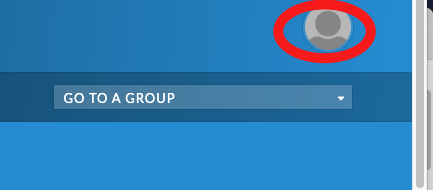
1. Click on your profile icon in the top right
[](https://rebeltoolkit.extinctionrebellion.uk/uploads/images/gallery/2022-11/email-style-default-1.png)
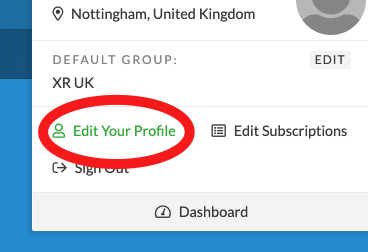
2. Edit your profile
[](https://rebeltoolkit.extinctionrebellion.uk/uploads/images/gallery/2022-11/email-style-default-2.png)
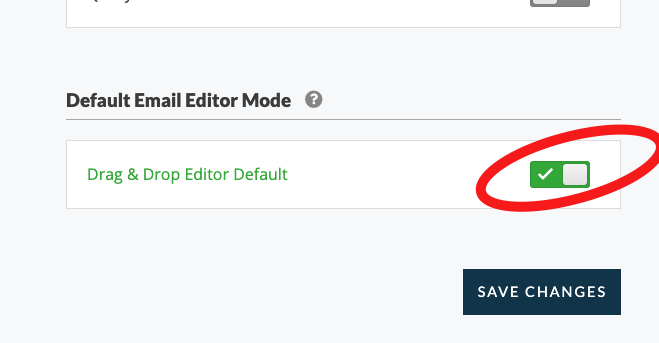
3. Scroll to the bottom of the page and switch the toggle to 'drag and drop' and then 'save changes'
[](https://rebeltoolkit.extinctionrebellion.uk/uploads/images/gallery/2022-11/email-style-default-3.png)
# Validate your reply-to email address
This is quick and easy thing to do and is very important because:
- **to ensure more of your emails/newsletters reach your subscriber's inboxes** (instead of junk/spam).
- **so you can recieve replies** to your messages
[Follow the AN guidance here](https://help.actionnetwork.org/hc/en-us/articles/36999589334036-Verifying-your-reply-to-email) or read the steps below.
You will still technically be able to send out emails, but it is **strongly advised that you do validate your reply-to email**.
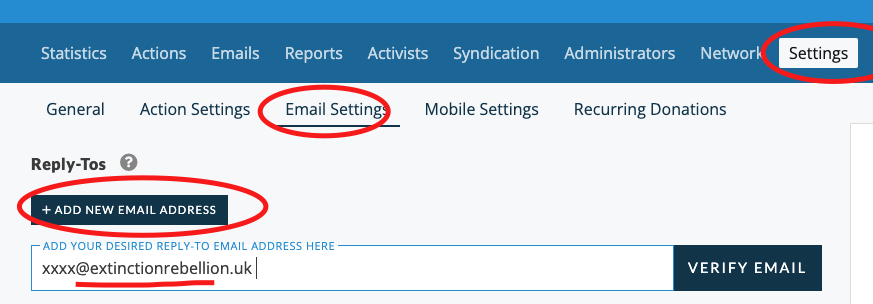
1. Go to your 'group' and click on settings on the middle dark blue menu bar.
2. Click 'Email Settings' (if you can't see this option you may need additional 'permissions' - please [contact the Action Network Data Team'](https://rebeltoolkit.extinctionrebellion.uk/link/634#bkmrk-page-title)).
3. Click '+ ADD NEW EMAIL ADDRESS'.
4. Type in the email address you usually use as the 'reply-to' when you send emails. This should be your Local Group (or team's) contact email. One that you have access to, so you are able to recieve any questions people have when they reply to the Action Network emails you send out.
5. Log in to your inbox you'll have received and email from Action Network to validate your email address (it might take a minute or two to arrive).
---
Note: only click on emails asking you to urgently validate and email address if you've just done the steps above. Beware of [unsolicited 'phishing' requests](https://rebeltoolkit.extinctionrebellion.uk/link/1841#bkmrk-page-title) or a similar type.
Bonus info: if you are using protonmail, gmail or similar for your reply-to address and you are an XRUK circle/team, Nation, Region or Local Group, you can [apply for an xxxx@extinctionrebellion.uk email address here](https://rebeltoolkit.extinctionrebellion.uk/books/other-online-tech-tools/chapter/applying-for-and-using-extinctionrebellionuk-email-accounts).
If you don't see the 'Settings' tab on the dark blue menu bar, then your admin account doesn't have the Settings permission. If you feel like you should have this ability then contact the [Action Network Data Team](https://rebeltoolkit.extinctionrebellion.uk/link/634#bkmrk-page-title).
# Write and send an email
#### Start a new email
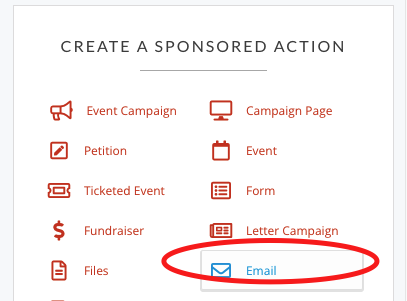
Go to the right hand side menu and pick 'Email'
[](https://rebeltoolkit.extinctionrebellion.uk/uploads/images/gallery/2022-02/Email.png)
#### Next steps
[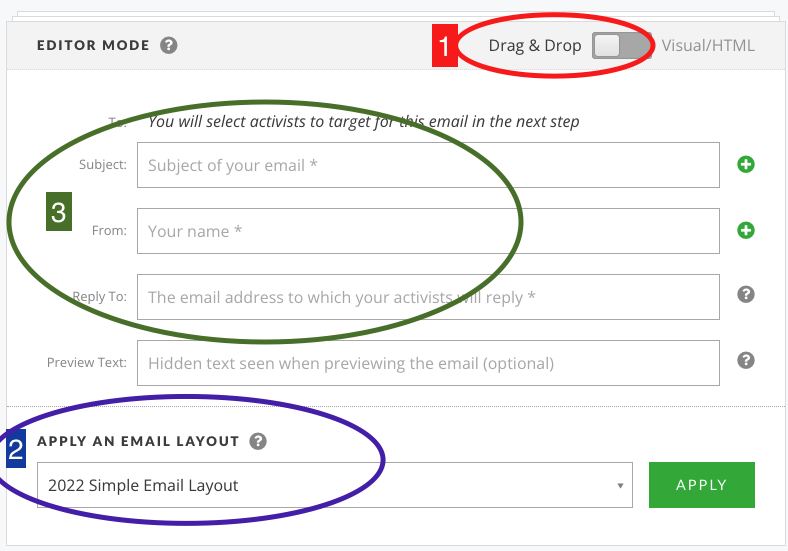](https://rebeltoolkit.extinctionrebellion.uk/uploads/images/gallery/2022-02/image-1645383275551.png)
1: Skip to step 2 if you've already changed your [default settings](https://rebeltoolkit.extinctionrebellion.uk/link/496#bkmrk-you-can-set-your-def)
2: You should see the default XR template layout here (2022 Simple Email Layout) - if not [contact the Action Network Team](https://rebeltoolkit.extinctionrebellion.uk/books/action-network-for-xr/page/contact-the-action-network-data-team).
3: Complete the following...
[**Subject**](https://rebeltoolkit.extinctionrebellion.uk/books/action-network-for-xr/page/tips-for-writing-effective-content) - a simple 5ish word title which makes the subject of the email clear and appealing,
**From** - your group name e.g. XR Sheffield
**Reply To** - your public contact email for people to reply and ask questions.
3b: Also you should complete the [**Preview text**](https://rebeltoolkit.extinctionrebellion.uk/books/action-network-for-xr/page/tips-for-writing-effective-content) with some extra words of encouragement. This can be about 10 words long and it will show up on some people's phones _before_ they open the email. So think of it as some extra bit of information to tempt them in to opening it.
4: Then write your email. The safest way is to type straight in to here. If you copy and paste from a Word or Google doc, the formatting can also copy over which creates problems. Either copy from a plain text editor or paste without formatting. [Help on how to do this](https://rebeltoolkit.extinctionrebellion.uk/link/1276#bkmrk-page-title)
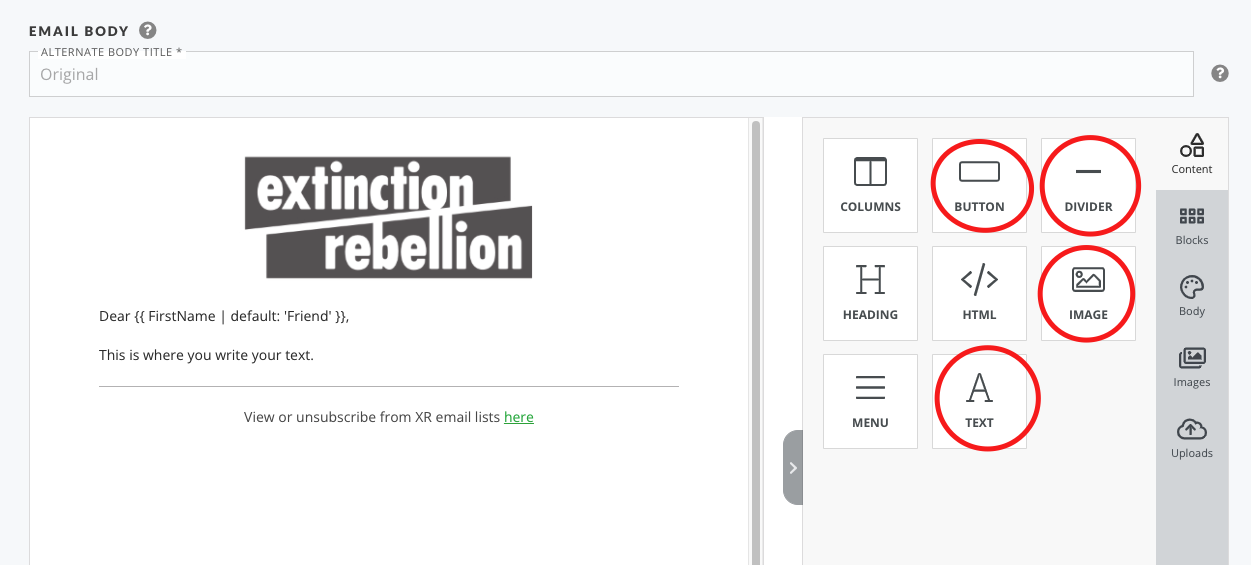
5: Adding extra content boxes. The most common things to add would be the items circled in the following image. You drag them over to your email layout and use them as you wish.
[](https://rebeltoolkit.extinctionrebellion.uk/uploads/images/gallery/2022-02/image-1645383477200.png)
6: You may now want to add a photograph or graphic either at the top or within your email - [details of how to add images here](https://rebeltoolkit.extinctionrebellion.uk/books/action-network-for-xr/page/inserting-images-into-your-action-network-e-mail). This also contains **very important guidance** on accesibility and resizing of images.
#### Target and Send your email
[](https://rebeltoolkit.extinctionrebellion.uk/uploads/images/gallery/2022-02/image-1645383924462.png)
Before sending the email out to your list, you can send yourself a test email. It is always good to proofread your email on a phone as well as on a computer to see what it looks like.
When you are happy with your email - click 'SAVE AND TARGET YOUR EMAIL'
You can now see the targeting page.
You can just skip this and click SAVE, PREVIEW and SEND.
**A warning appears advising you NOT to send to your whole list.** With a small list (under 5000) it's probably still ok to send to all, but if you want to know more about targeting there is [information about the warning message here](https://rebeltoolkit.extinctionrebellion.uk/link/1339#bkmrk-page-title)
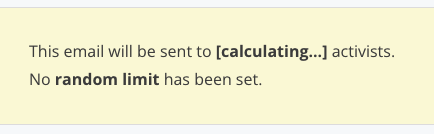
The next page shows a preview of your email. Scroll down to the bottom and you will see Action Network calculating how many 'activists' to send to.
[](https://rebeltoolkit.extinctionrebellion.uk/uploads/images/gallery/2022-02/image-1645385022019.png)
When it's finished you'll see how many activists you are about to send the email to.
You can now either schedule (you have to minus 5hrs, due to this being set up for EST time zone e.g. if you want to send at 9am, then schedule for 4am EST) or if you want to send immediately, use the red button.
[](https://rebeltoolkit.extinctionrebellion.uk/uploads/images/gallery/2022-02/image-1645385115248.png)
# Targeting an email
#### Warning Message when targeting
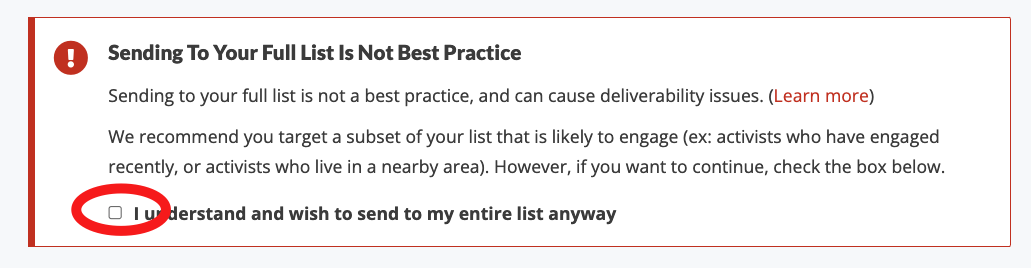
There is a new warning message on Action Network (as of 2024) that looks like this:
[](https://rebeltoolkit.extinctionrebellion.uk/uploads/images/gallery/2024-01/warning-message.png)
With smaller lists (less than 5000 subscribers) it's probably still ok to send to everyone on your list - just tick the box and proceed. But if you are getting low open rates (less than 40%) for any sized list, then perhaps read on for advice....
#### How to target the more active subscribers
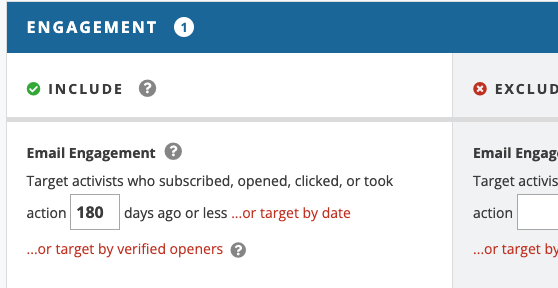
To do this in a quick and simple way you can target using this option:
[](https://rebeltoolkit.extinctionrebellion.uk/uploads/images/gallery/2024-11/screenshot-2024-11-19-at-09-54-17.png)
This will then only send an email to someone who has newly subscribed, opened, clicked or taken and 'action' (that means filling in a form or event) in the last 180 days (this is the time period that Action Network recommends).
The will probably reduce the number of people you email to about 70-80% of your full list. If you do this regularly, it is supposed to help make sure emails go to inboxes and not spam.
Your list looks more 'engaged' when a higher percentage of people open the emails.
An email coming from an engaged and active list is more likely to end up in somones inbox than in spam.
**It would then be good practice to email EVERYONE a couple of times a year, to try to 'wake up' those inactive people.**
There are many other options in targeting emails, and you'll see the ? sign next to each item to explain what it is. There are too many options to explain here, so if you need help - contact the [Action Network Data Team](https://rebeltoolkit.extinctionrebellion.uk/link/634#bkmrk-page-title)
#### Targeting on people registered to an event...
(...this is the same for other 'actions' such as **forms** and **surveys**)
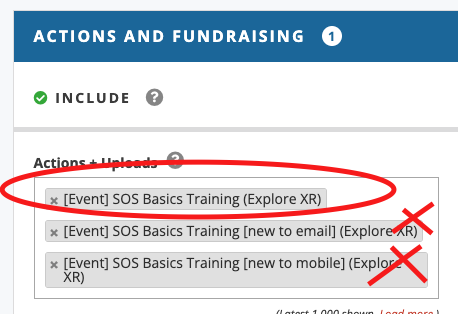
Just note for using 'actions' during targeting - be aware that for each 'action' there are three options and you should choose the first one (otherwise you might miss some of the people registered).
[](https://rebeltoolkit.extinctionrebellion.uk/uploads/images/gallery/2024-11/action-targets.png)
If you want to exlude people who have taken an 'action' just do the same but in the EXCLUDE column instead.
# Tips for writing effective content
How to improve open rates and increase involvement from people subscribed to your list.
#### Subject lines
Write engaging subject lines to catch people's attention. This could be by that implying someone's participation is valuable and needed; pitching your event as new and exciting; or tailoring an email to be as local as it can be. e.g.
- Help make our January action a success
- Join us for a meal next Wednesday
- New Heading for Extinction talk - book now
- XR Nottingham on the local news
#### Preview text
This is added in the header of your email and is shown to some of your readers. It provides space for about 10-15 more words that could help tempt someone to open the email. e.g.
- Join us next Tuesday for free cake and conversation in the Cafe on the Green
- Hear all the latest science in this engaging new talk
#### Email body
Sometimes you want to cover a lot of information in an email because there is a lot happening and giving choice to your readers will help them find the thing that interests them.
BUT... if you have something important that you really want as many people as possible to do, whether this is signing up to a zoom, or attending a meeting or action, then a **single focused email** is far more effective. These are suggestions to help create a focused email:
- Using 150-200 words max
- Only have one link in your email - if you have more, make sure the most important one is first and preferably comes early enough in your email that the person can see it on their phone before scrolling.
#### More resources
- [How to Write a Marketing Email: 10 Tips for Writing Compelling Email Copy](https://blog.hubspot.com/blog/tabid/6307/bid/32606/the-9-must-have-components-of-compelling-email-copy.aspx)
# Deliverability - making sure your email doesn't look like spam
Reading and acting on the advice below will reduce the number of emails getting caught by spam filters and hopefully deliver more emails to your subscribers inboxes.
#### Alt tags on Images
Use 'alt' tags on images. Just click the image after you've added it into an email and write a description for the 'alt/title' e.g. _Rebel holding pink banner reading Act Now_. This is good practice for accessibility for people with visual impairments who use screen readers, but could also help with deliverability.
#### Image sizes
Don't use images over 600px wide. You can change the size after you've added it to the email.
Guidance on [adding images is here](https://rebeltoolkit.extinctionrebellion.uk/link/706#bkmrk-page-title).
#### Short Links
Don't use short links (e.g. don't use bitly.com/xxx or tinyurl.com/xxx or even XR's own short link generator [xrb.link](https://xrb.link/) - it's fine to use these on telegram or social media- but not in emails. This doesn't mean you have to have a long link url on show - just hide it as a hyperlink.
The reason for this seems to be that people that send spam email often hide links behind shortlinks and so they make your make email look suspicious.
#### Private data embeded in links
VERY IMPORTANT - don't use links that you've copied out of other emails. Links from Action Network emails contain tracking links and people's personal Action Network ID's etc. You will get an error message if you do this of **"You appear to have a link with an Action Network ID attached"** - read [details of this error message](https://rebeltoolkit.extinctionrebellion.uk/link/614#bkmrk-page-title).
#### Reply-to email address
You will need to 'validate' your reply-to email address. This is quick to do and [the instruction are here](https://rebeltoolkit.extinctionrebellion.uk/link/1844#bkmrk-page-title).
You can use any email address as your reply-to e.g a gmail or protonmail address. Usually this would be your Local Group's (or campaign/community group) public contact email. But more of your subscribers are likely to get your newsletters/emails in their inboxes if you use a 'trusted domain' like extinctionrebellion.uk. This should make it less likely that your mailouts will be stopped by spam filters or diverted to 'junk' folders.
You can apply for your own email address in the format **_GroupName_@extinctionrebellion.uk** - [guidance on how to request one of these email address is here](https://rebeltoolkit.extinctionrebellion.uk/books/other-online-tech-tools/chapter/applying-for-and-using-extinctionrebellionuk-email-accounts).
It is now very important for groups with list sizes over 5000 to use one of these address or another 'trusted domain'. If you have your own domain e.g. XR Nottingham have xrnottingham.org and use 'support@xrnottingham.org', but if you do this you should [set up the DMARC, DKIM records](https://rebeltoolkit.extinctionrebellion.uk/books/action-network-for-xr/page/installing-dkim-spf-and-dmarc-records).
#### Warning message when targeting emails
This warning is documented on the [Targeting and email](https://rebeltoolkit.extinctionrebellion.uk/link/1339#bkmrk-page-title) page.
#### Engagement
Extra guidance can be read in the [AN Deliverability Checklist](https://help.actionnetwork.org/hc/en-us/articles/18929552061204-Deliverability-Checklist) and the full [Deliverability Training (15min) video](https://www.youtube.com/watch?v=D3yMoIAWApk). If you watch these and feel out of your depth, then reach out to the [Action Network Data Team](https://rebeltoolkit.extinctionrebellion.uk/books/action-network-for-xr/page/contact-the-action-network-data-team) for support.
# Formatting, readability and accessibility
Writing clear, readable emails for everyone and with focus on readers with visual impairments, dyslexia etc.
#### Text and Style guide
Use sans serif fonts (such as Arial and Calibri). Once you have chosen a font it's best to stick to it; don't mix fonts in an e-mail.
Avoid using italics, capitals, underlines, or colour for emphasis. Instead, use **bold** text for emphasis.
Font size should be at least 14 point or equivalent.
Use simple language that is clear and easy to understand. Use shorter sentences and avoid using abbreviations and jargon.
[Some more general guidance](https://rebeltoolkit.extinctionrebellion.uk/link/766#bkmrk-page-title) on text, style, colour and layout.
#### Images
Include alternative (alt) text to describe images, tables, and graphics for people using screen readers. Just click the image after you've imported it into an email and write a description for the 'alt/title' e.g. _Rebel holding pink banner reading Act Now_.
#### Links
Ensure any hyperlinks are descriptive. For example, "Video about 100 Days" rather than "Click here".
#### Paste without formatting!
Particularly when using the drag and drop email editor, there can be significant problems copying text from a program such as Word or Google Docs into Action Network. Luckily, there is an easy fix!
**Windows users**
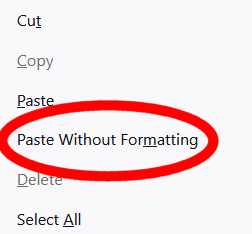
When pasting, use the shorcut __Ctrl+Shift+V__ instead of __Ctrl+V__. This pastes just the simple text, rather than the text plus formatting.
You can also see this option on the context menu you get when right-clicking.
[](https://rebeltoolkit.extinctionrebellion.uk/uploads/images/gallery/2023-05/Screenshot-2023-05-24-141754.png)
**Mac users**
Try __Cmd+Option+Shift+V__
# Optimal layout tips for phones
Sending test emails to yourself and reading them on your phone, is the best way to experience how a large proportion of your readership will be viewing your email.
#### Things to consider
- Emails look WAY longer on a phone, especially if people have smaller phone screens, or the font sizes set to larger sizes.
- Make your main CTA (your call to action) high up in your email, ideally the first link in your email - so people aren't scrolling to get to the button or main link you want them to click on.
Here is an example of what an email looked like when viewing on a phone - all the information is visible as soon as you open the email. This is done by keeping the word count low and the top image height small.
[](https://rebeltoolkit.extinctionrebellion.uk/uploads/images/gallery/2022-02/TrainingV2.jpg)
# Inserting images into your Action Network e-mail
Including images can really help with reader engagement, but there are couple of things to keep in mind. First is that images need to be relevant and mean something, and secondly they must resized to suit emails.
If you are someone that uses photo/graphics software, just make sure your exported .png or .jpg is 600px wide. But don't worry if this isn't your thing - you can change the size after you've added the image.
#### Drag and Drop interface
For those using the 'html' interface [skip to here](https://rebeltoolkit.extinctionrebellion.uk/link/706#bkmrk-html-email-interface)
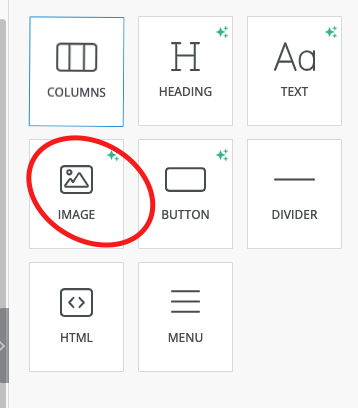
1. Add a image content block to your email.
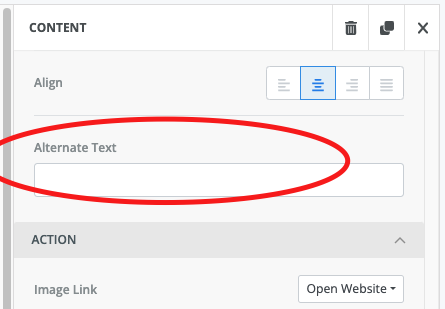
2. Add alt text - something descriptive like 'rebel holding banner reading climate emergency' in the alt text - this is for accessibility reasons and also reduces the chance of your email being caught in spam filters.
3. Click _Upload Image_ or just drag an image across from your desktop.
4. To help reduce the overall size of your email you can now reduce the image size.
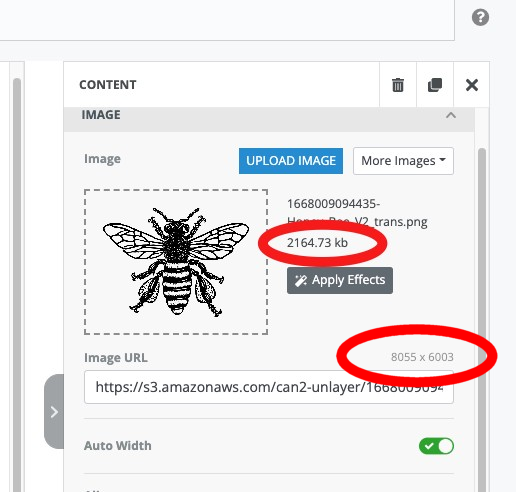
The file size of this image is 2164 kb which is unnecessarily big.
By resizing to 600 pixels wide, the image will be much smaller but still be large enough for your email.
Use the **Apply Effects** button.
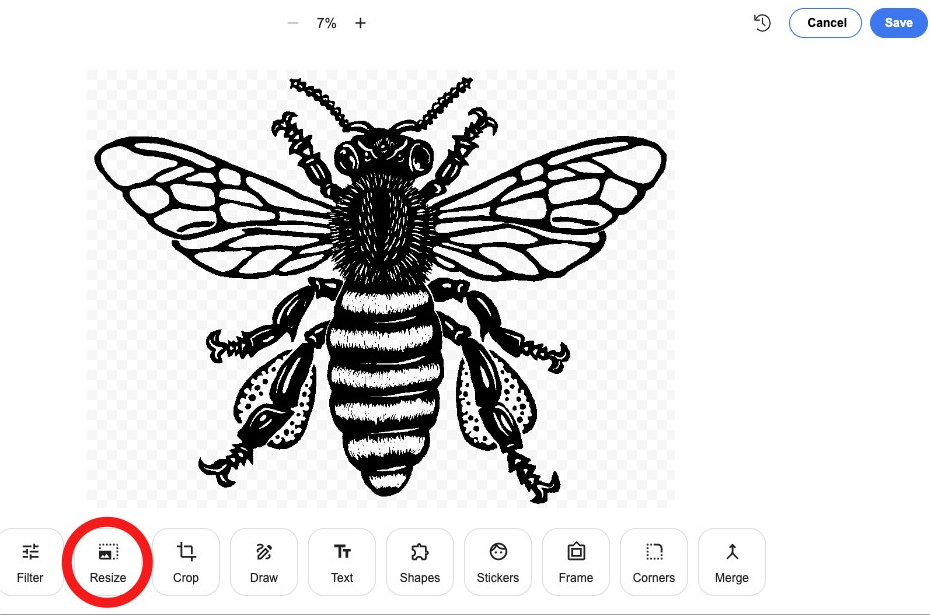
5. Click on the resize button and set the **width** to 600
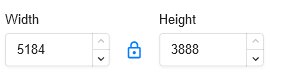
6. Click **Apply** top right of this screen, then **Save**.
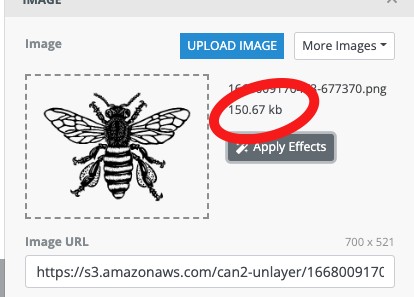
Now you can see that the size of the image is much reduced (down from 2164 kb to 150 kb)
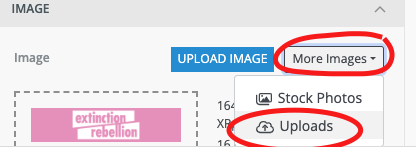
Note : your images are available to use again and can be accessed again from More Images/Uploads.
#### HTML email interface
If you want to add images to html email - avoid copy and pasting - this can cause and error that will reduce the number of emails getting to inboxes.
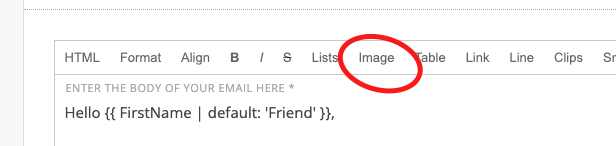
Insert the image using the 'image' option on the toolbox
[](https://rebeltoolkit.extinctionrebellion.uk/uploads/images/gallery/2024-05/image-1715272792508.png)
# Automatic welcome email for your group
So, you’ve got your group up and running and people are signing up via the [LGmap](https://map.extinctionrebellion.uk/) or the [UK website page](https://extinctionrebellion.uk/act-now/local-groups/) or your shortlink (joinxr.uk/localgroupname) or via your own tailor made sign up forms. Nice! Questions? - head to [this page](https://rebeltoolkit.extinctionrebellion.uk/link/702#bkmrk-page-title).
But how will they know when your meetings are and get introduced to your group? A welcome email when they have joined the group is a great way of making first contact, particularly for people who found out about your group through the website.
You can [request help or training for this](https://rebeltoolkit.extinctionrebellion.uk/link/650#bkmrk-page-title) or you can follow the instructions below.
>If you already have a welcome email set up and you just need to view or amend it >> [Skip to step 3](https://rebeltoolkit.extinctionrebellion.uk/link/497#bkmrk-step-3---view-and%2For)
#### Step 1 - Set up a ladder
Before you set up your welcome email - make sure you have [setup your 'reply-to' email addess](https://rebeltoolkit.extinctionrebellion.uk/books/action-network-for-xr/page/validate-your-reply-to-email-address), the one that you want recipients to reach if they click 'reply' when they receive your welcome email. This is usually the same email inbox as you use as the main contact for your local group.
(This is because Action Network only sends emails, it doesn't receive replies).
A ladder in Action Network allows you to set things in motion when something happens. For this situation the 'trigger' is that someone is new to your list and the 'action' is to send them an email.
Select **Ladder** in the right hand menu.
[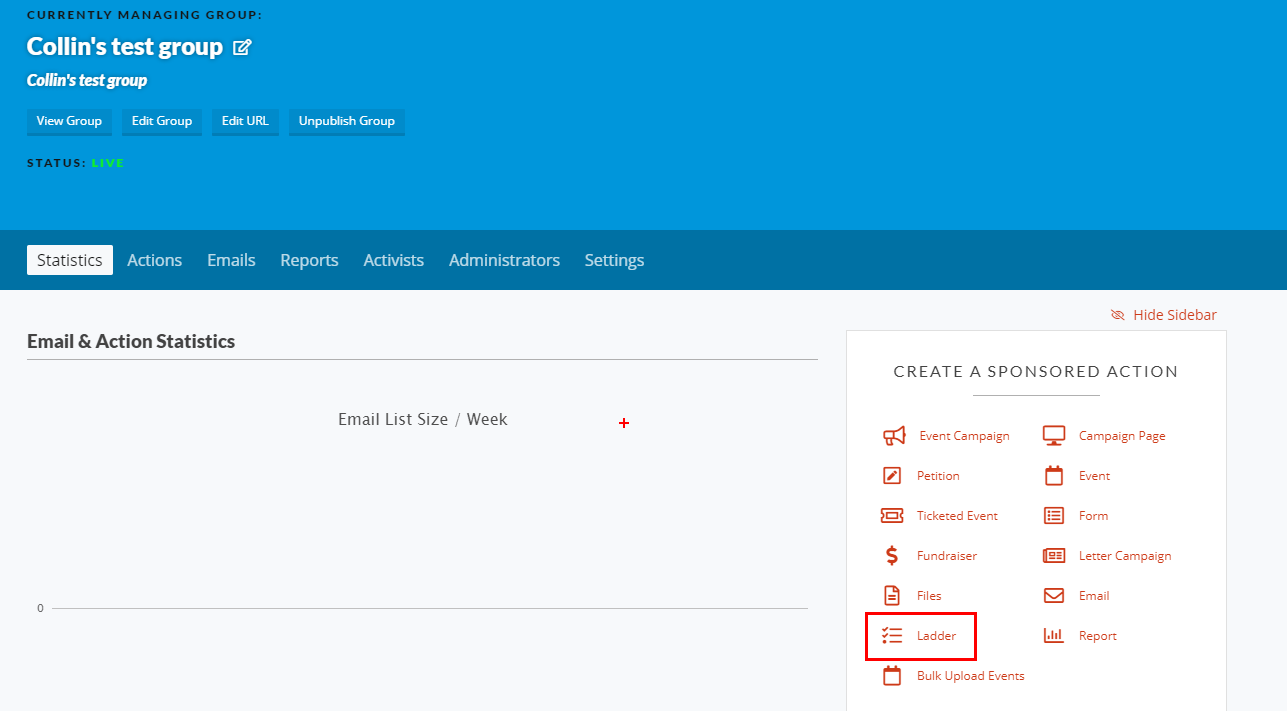](https://rebeltoolkit.extinctionrebellion.uk/uploads/images/gallery/2021-04/find-ladder.png)
[](https://rebeltoolkit.extinctionrebellion.uk/uploads/images/gallery/2021-12/image-1639648539786.png)
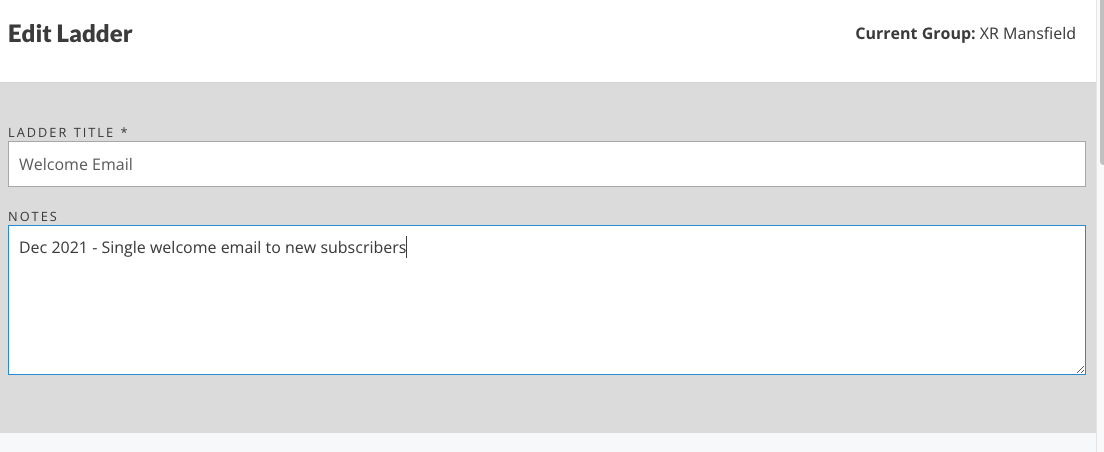
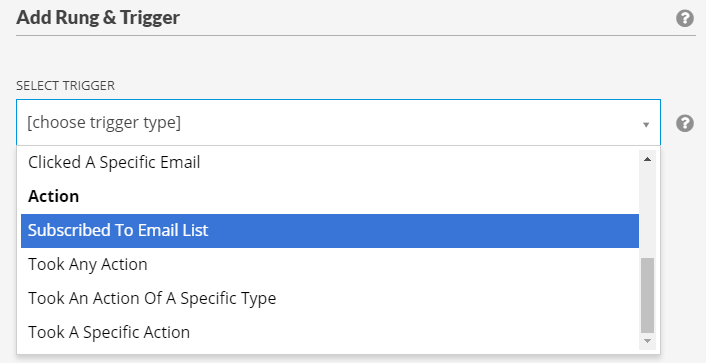
Check that the current group (top right) is correct and enter a title and description. Now click the “ADD NEW RUNG” button. This brings up a new screen to Add a Rung & Trigger. The trigger is what sets the ladder in motion. For a welcome email, it is when an activist first subscribes to your group. Click the dropdown and choose "Subscribed To Email List".
[](https://rebeltoolkit.extinctionrebellion.uk/uploads/images/gallery/2021-04/rung-trigger.png)
Once you have that option selected, click "Save Rung & Trigger". This takes you back to the Ladder. You now want to add an action. Hover over the red plus and pick Action.
[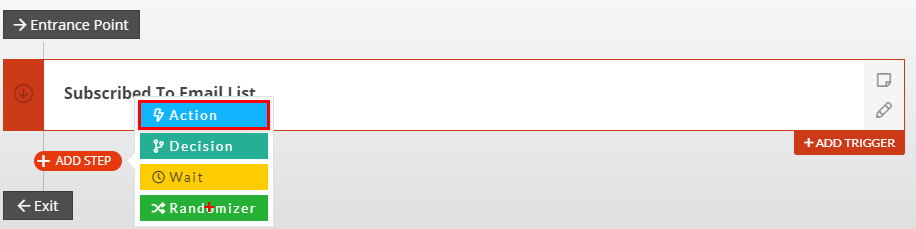](https://rebeltoolkit.extinctionrebellion.uk/uploads/images/gallery/2021-04/add-action.png)
Then choose Send An Email.
#### Step 2 - Create your welcome email
Choose an email wrapper (**2023 Karla font - no graphics** is currently recommended) and set up the other info; Subject, From, Reply-to, Preview Text. [Find a template welcome email here](https://docs.google.com/document/d/1zKi7-fd_nJzawsbi_3jugC1a1J1Ye5MHuHrd9-_Md2Y/edit?usp=sharing) and [advice on good subjects and preview text here.](https://rebeltoolkit.extinctionrebellion.uk/books/action-network-for-xr/page/tips-for-writing-effective-content)
e.g.:
[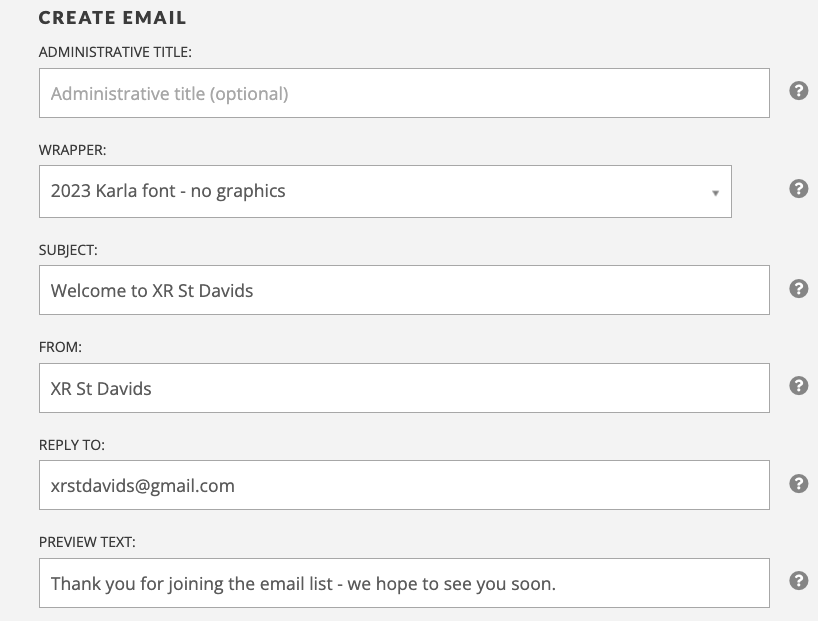](https://rebeltoolkit.extinctionrebellion.uk/uploads/images/gallery/2023-11/image-1700938370226.png)
In the email body you can give information about your local group, when and where you meet and how to get involved. Something quite short and simple is fine. e.g.:
[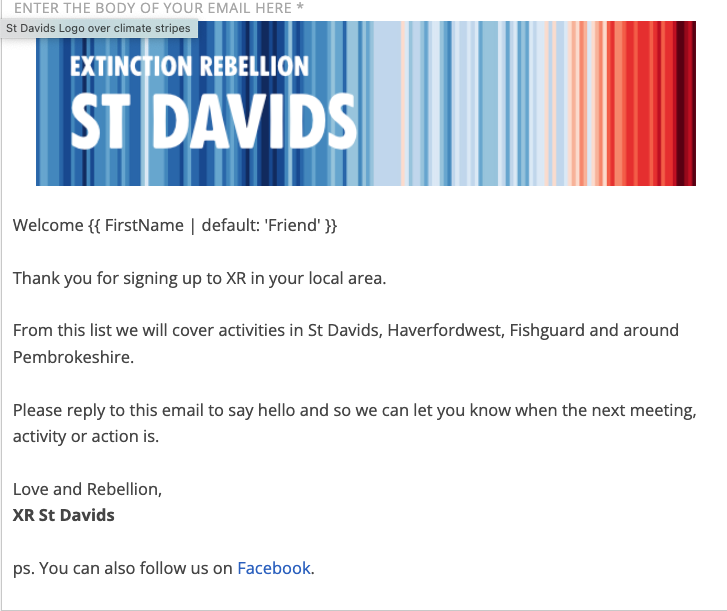](https://rebeltoolkit.extinctionrebellion.uk/uploads/images/gallery/2023-11/image-1700938540209.png)
P.S. if you like the graphic, then request a tailormade one from [LGsupport@extinctionrebellion.uk](mailto:LGsupport@extinctionrebellion.uk)
##### Then make sure you save the email you've created AND then save the Ladder itself
It can be either left in draft or published immediately.
**Remember** that once you have set this ladder in motion it will keep running until you stop it. So remember to check it occasionally to make sure it's up-to-date.
#### Step 3 - View and/or edit your auto-email
To edit your welcome email, you need to view the ladder. Click on 'People' in the top menu row.
[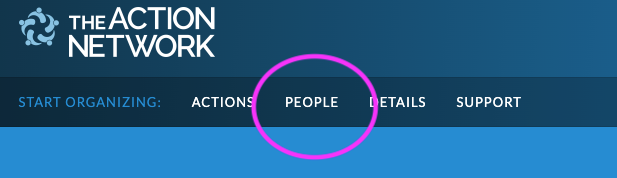](https://rebeltoolkit.extinctionrebellion.uk/uploads/images/gallery/2022-08/image-1660942621922.png)
Click on the icon next to the word 'Ladders'
[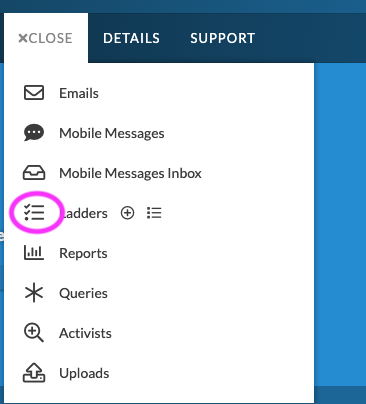](https://rebeltoolkit.extinctionrebellion.uk/uploads/images/gallery/2022-08/image-1660942795265.png)
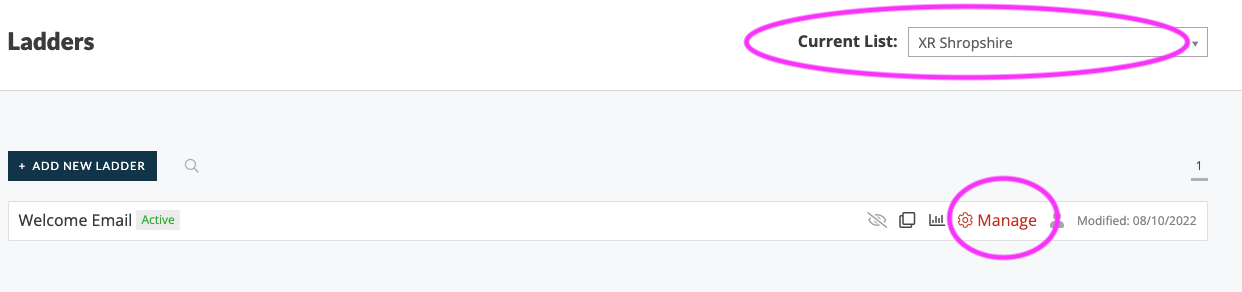
Note: If you are an admin of more than one email list, double check you are looking at the right group (for instance the name of your local group) and then click 'Manage' on the Ladder you want to edit.
[](https://rebeltoolkit.extinctionrebellion.uk/uploads/images/gallery/2022-08/image-1660942997983.png)
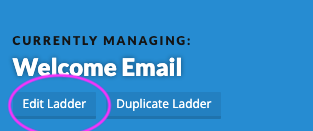
Here you can 'edit' and update your email (as well as viewing some stats). First, click on 'Edit Ladder'.
[](https://rebeltoolkit.extinctionrebellion.uk/uploads/images/gallery/2022-08/image-1660943119730.png)
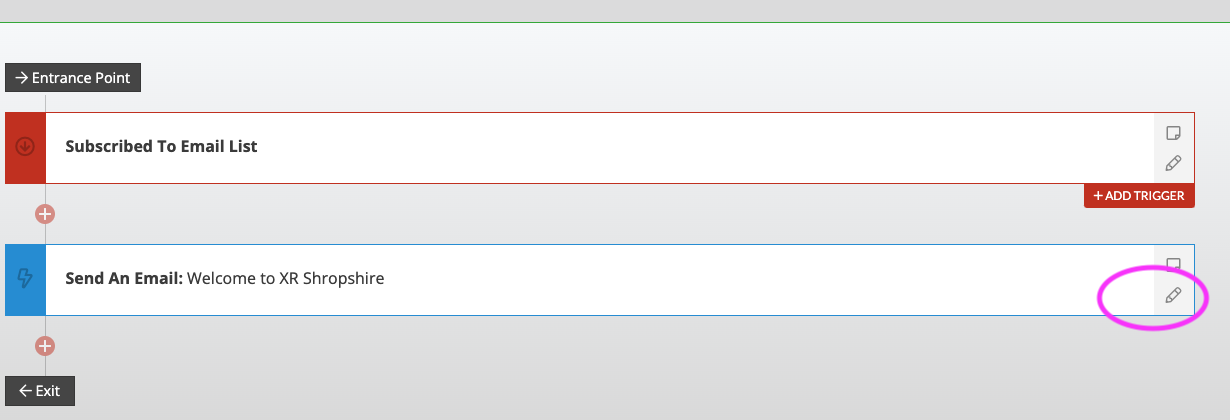
Scroll down and click the pencil icon for the section you want to edit.
[](https://rebeltoolkit.extinctionrebellion.uk/uploads/images/gallery/2022-08/image-1660943186369.png)
**Important** : Remember to click 'Save Action' and then also 'Save'!
# Buttons and hyperlinks
**Note:** In Action Network when adding either hyperlinks or buttons, you should always use full original URLs and not 'shortlinks' - an [explainer of why is here](https://rebeltoolkit.extinctionrebellion.uk/link/571#bkmrk-short-links).
#### What are buttons and hyperlinks?
- A **button** is a graphical shape within your email that looks a bit like a button. When it's clicked, it takes the user away from the email to a website, form, event, etc.
- A **hyperlink** means when some words are turned in to a link. For example: [This is a hyperlink to the XRUK website](https://extinctionrebellion.uk/).
#### What text to put on your button or hyperlink
Don't be tempted to use 'Click here' as the text within a hyperlink or button. For hyperlinks, try to highlight words that make sense within the sentence, and for Buttons, try to use individual words that make it clear where the button goes. .
For example-
**Don't use:**
'More information is on the XRUK website - if you'd like to learn more click here'
**Instead, use something like this:**
"If you'd like to learn more go to the XRUK website"
#### Creating hyperlinks in 'drag and drop' mode
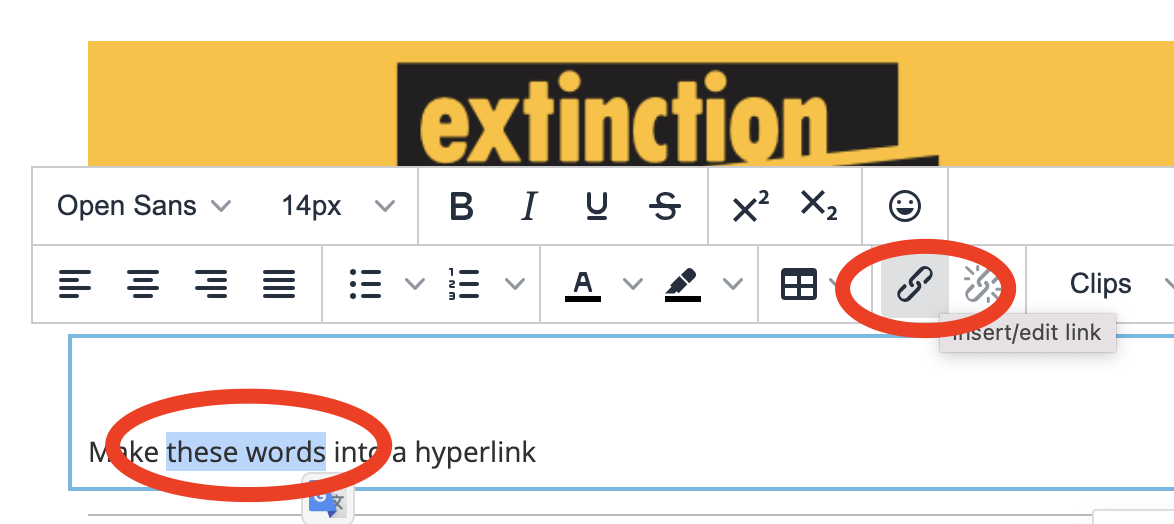
Highlight the text you want to link, click the link icon and add your link URL.
#### Creating hyperlinks in 'Visual/HTML' mode
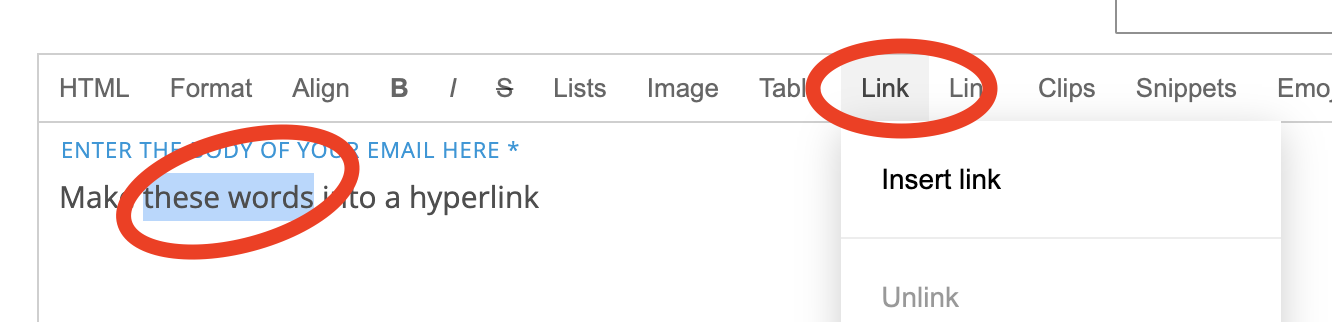
Highlight the text you want to link, click the word 'link' and add your link URL and tick 'open link in new tab'
#### Creating buttons in 'drag and drop' email writing mode
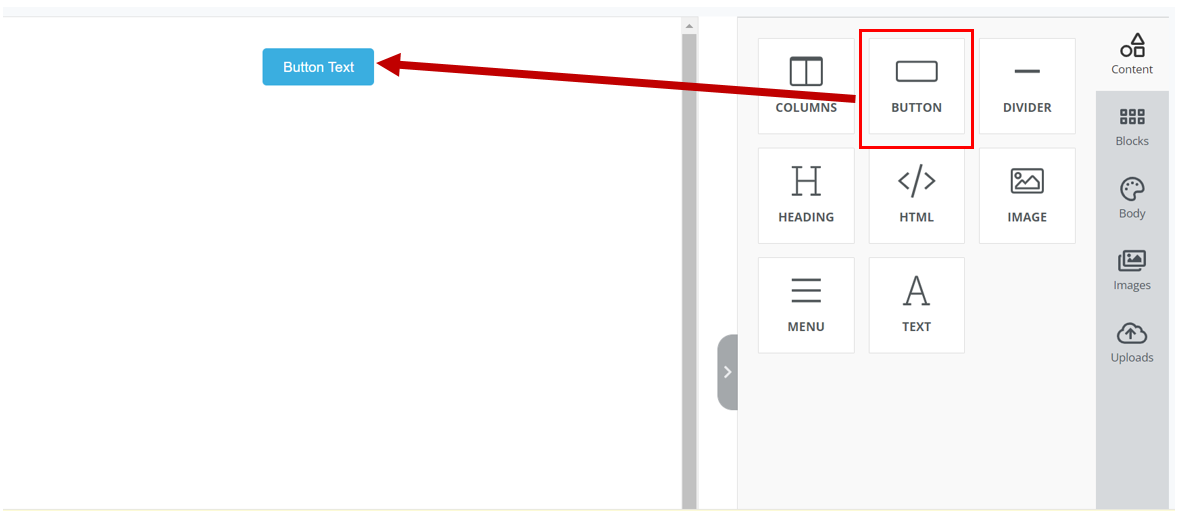
1) Click on the square that states ‘Button’ and drag it into the editing square to the left.
[](https://rebeltoolkit.extinctionrebellion.uk/uploads/images/gallery/2022-12/1-image.PNG)
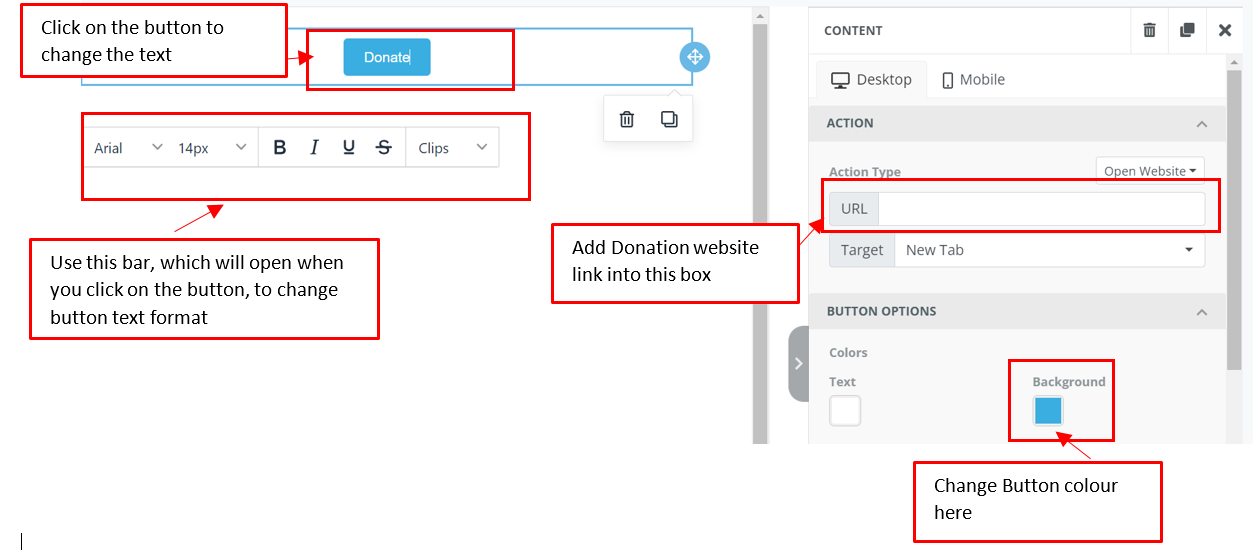
2) Click on the Button you have just created in the Editing Window (on the left). This will bring up option in the right window to enable you to change the text in the button, add a URL link, change the colour and form of the button etc.
[](https://rebeltoolkit.extinctionrebellion.uk/uploads/images/gallery/2022-12/2-image.PNG)
#### Creating buttons in 'Visual/HTML' email writing mode
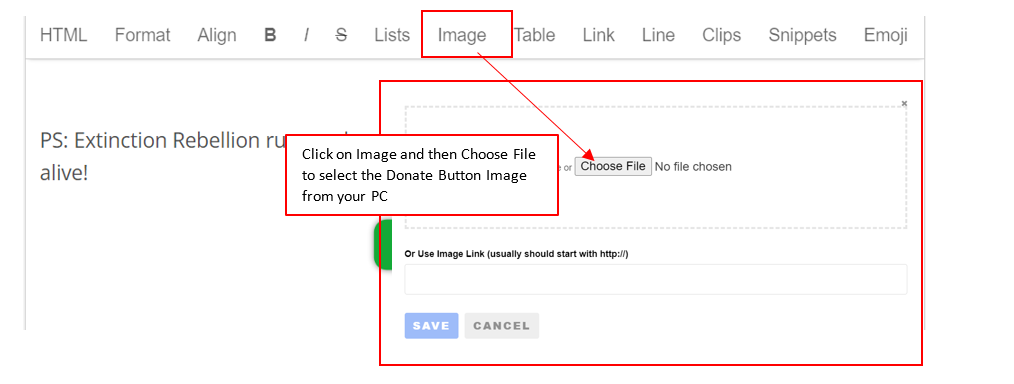
1) First you'll need an image that you want to become the button. Here is an example of a donate button.
2) Add Image to the email as shown below
[](https://rebeltoolkit.extinctionrebellion.uk/uploads/images/gallery/2022-12/3a-image.png)
3) Click on the image you have just added into the email body, and the window shown below will open. Add the link that you want to open when you click the button to the 'Link' field shown below.
[](https://rebeltoolkit.extinctionrebellion.uk/uploads/images/gallery/2024-03/image-1709653113962.jpg)
#### Suppressing tracking data
Action Network adds tracking data to every link in your email. This helps you see how many times those links have been visited and is a valuable resource for judging how effective your email is. However, this tracking can sometimes cause problems for the site you are sending visitors to. This is probably rare, but it happened, for instance, with the following link: https://eventmap.extinctionrebellion.uk/#53.408695,-3.441468/6/week/action//
The tracking data caused the page to display incorrectly. You can suppress the tracking data by adding **?no_rewrite=true** to the URL, so the above link becomes:
https://eventmap.extinctionrebellion.uk/#53.408695,-3.441468/6/week/action//?no_rewrite=true
Doing this will mean that you won't get information about those particular clicks but, in the above case, that was less important than making sure readers saw the website as we wanted them to.