Guidance for using Zoom in Talks, Training and Workshops
How to log on to Zoom and select your booked session
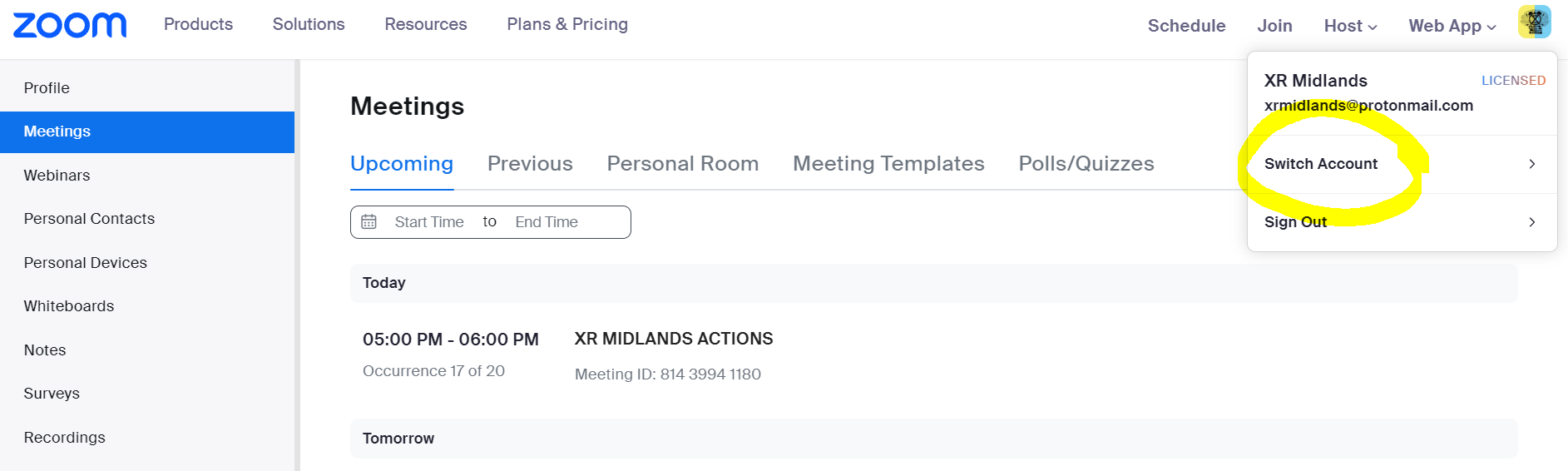
Access details are the same as those used for booking the session. REMEMBER to check whether you are already logged into another Zoom account. If so, you need to log out of that one to log into the Zoom account where the session is booked. Go to the avatar at the top right - sign out and then sign into the correct account.
How to enable closed captions BEFORE THE SESSION BEGINS
- Anyone who is D/deaf or partially deaf will need these running from the start of the session.
- At the bottom of your screen, select closed CC/Live Transcript.
- You or participants can always Hide Subtitles if you don't want to see them. Alternatively, once everyone has arrived, ask participants whether anyone wants them running. If they are not required, they can be turned off.
- You need to be the host to turn CC/Live Transcript on or off.

How to admit participants from Waiting Room / How to unlock it
Once you have opened the session, pop up messages at the top of your screen will tell you that participants are in the Waiting Room. To let them into the meeting, click on “Admit”. Or once you have started the session, you can allow late arrivals to jump straight in rather than going to the Waiting Room. To do this:
- Click on Participants.
- Select the 3 dots at the bottom right.
- Select 'Enable Waiting Room'.
- This will disable the waiting room and allow people to join without you having to Admit them individually.
NOTE - this option will only work if you have created a Zoom registration link and selected both Passcode and Waiting Room when you created the Zoom meeting.
How to split screen to see the Zoom meeting and other information (eg. your script) side by side
- Have your script open on one tab before you open the Zoom session.
- Click on the ‘Reduce’ icon - two squares superimposed on each other in the top right corner of your screen. This allows you to adjust the size of that application by hovering over its edge and using the arrows that appear.
- Click on a new tab to log into the Zoom session and repeat the process as above.
- This gives you two screens side by side.
How to Share Your Screen, Video, or Audio
- Open any windows and / or tabs you plan to screen share before you start the session.
- Click Share at the bottom of your own screen (square with 'up' arrow).
- Click on the window or tab you want to share.
Watch Zoom support video on screen sharing.
How to create breakout rooms for check-ins
- Click on the Breakout Rooms icon on the bottom bar of Zoom.
- Choose how many people can go into each room (3 or 4 is a good number).
- Click ‘automatically’ to let Zoom select participants at random to go into different rooms.
- Select a time e.g. 5 minutes.