# Mattermost
# How to Use Mattermost
Read this document to get familiar with Mattermost. It is used to communicate with XR groups as well as have 1-to-1 conversations. You can also [watch this video](https://tube.rebellion.global/w/mk8HYzKQcccHvekF6yWrj2?start=0s) for a general introduction to Mattermost and its benefits.
### KEY INFO:
- Channels = Group chats
- Teams = collection of Channels
- DM = Direct Message 1 person or up to 7 people
#### If you need support with:
- **General Tech** - we use every platform in XR and we all need help sometimes!
- **How to use Mattermost**
- **Getting onto Mattermost**
- **Using the Hub** - and XR's other services including the UK Cloud, UK Forums
Please join one of the weekly sessions:
**Tuesdays 18:00-18:30 (quick questions)**
**Thursdays 18:30-19:30 (longer training)**
Join Zoom Meeting:
- [https://us02web.zoom.us/j/89528558324?pwd=R0JWZUovZk8zUy9RMXRjZGFGTmJaUT09](https://us02web.zoom.us/j/89528558324?pwd=R0JWZUovZk8zUy9RMXRjZGFGTmJaUT09)
Meeting ID: 895 2855 8324 | Passcode: 278766
For a series of video guides to supplement the below information, see [Video Guides to Help You Learn](https://rebeltoolkit.extinctionrebellion.uk/books/the-hub-mattermost-cloud-and-forums/page/video-guides-to-help-you-learn).
### First Steps
#### Getting Access
Before you can access Mattermost you first need to create an account on the XR UK Communications Hub - Hub for short. For instructions on how to do that please read [this guide](https://rebeltoolkit.extinctionrebellion.uk/link/1081).
Once you are on the Hub you can access Mattermost in a few ways:
1) Click on the Mattermost icon from the [Hub main page](https://hub.extinctionrebellion.uk/).
[](https://rebeltoolkit.extinctionrebellion.uk/uploads/images/gallery/2024-01/mattermost-icon-small.png)
2) Type [https://organise.earth](https://organise.earth) into your browser and hit **Enter**.
Once this is done we recommend adding the page to your bookmarks/favourites so it's easier to find in future.
**Note:** Mattermost is also available as an app so you can install it to your smartphone or tablet. Please read [this document](https://rebeltoolkit.extinctionrebellion.uk/link/1082) or [watch this video](https://tube.rebellion.global/w/mzTPgJp5TFFKo1jqMedkHn) for instructions on how to do this.
#### Landing Page
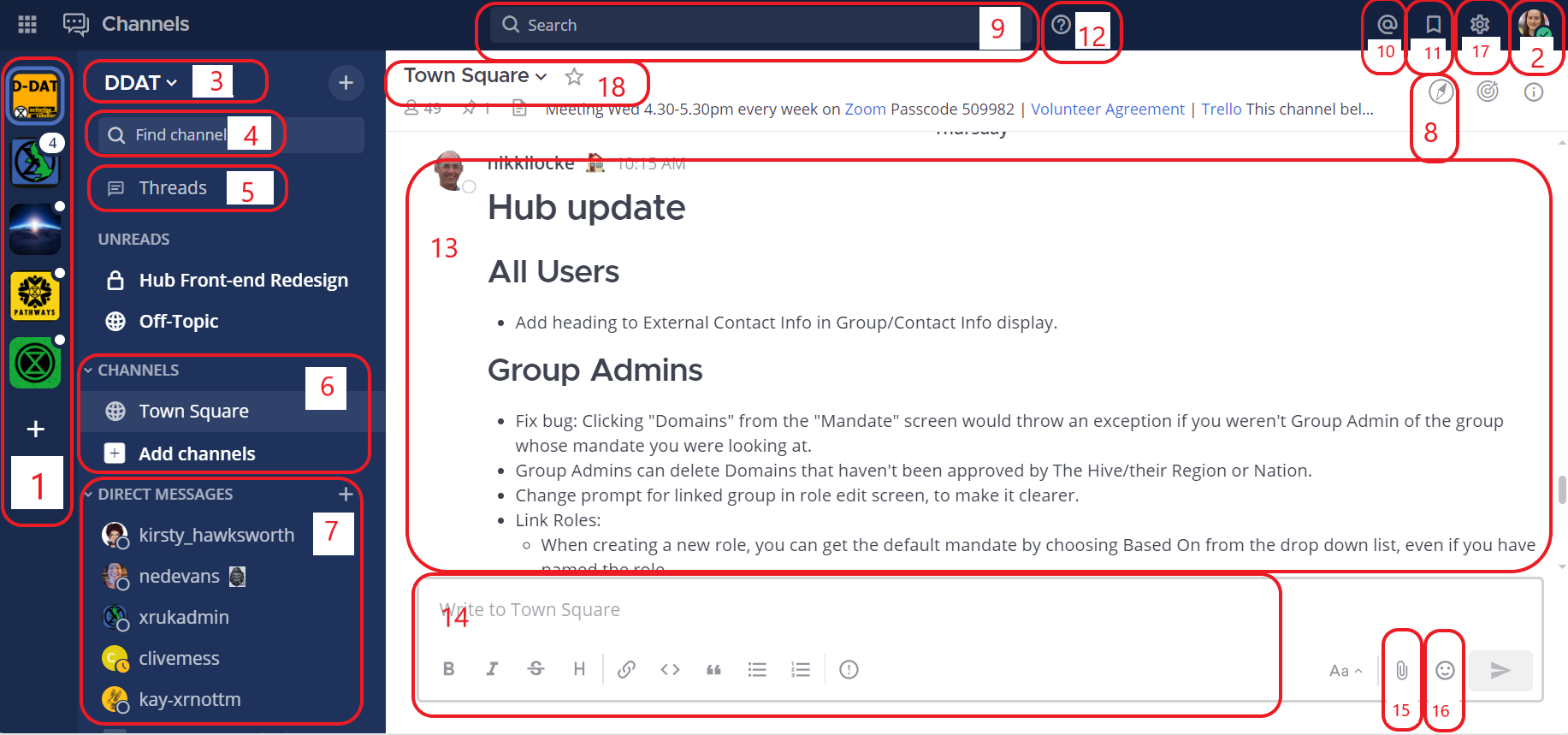
When you have logged in to Mattermost you will see a screen that looks a lot like this:
[](https://rebeltoolkit.extinctionrebellion.uk/uploads/images/gallery/2024-01/G9Pmattermost-homepage-annotated-with-numbers.png)
Note that we have added numbers to the screenshot and we will refer to this image throughout the document.
#### Navigation
Please [watch this very helpful video](https://tube.rebellion.global/w/kooVWh1rbqbFGgCzzpyFQk) for a guide to navigating Mattermost: from using Teams and Channels to saving and threading messages.
### Teams
Teams appear on the far left of your screen (1). When you have Mattermost open either in a browser or in the app, you can click on the icons [coloured squares on the left] to switch between teams. Inside a team there is a collection of Channels.
Once you have been invited to the Hub and added to a Hub group, the Hub will automatically add you to the UK Team on Mattermost and any channels in the UK Team belonging to your group. However, your group might use other teams and by accepting your Hub invite, you also be added to these as well as the channels within them.
#### Checking who else is in my Team
To see the other members of a Team, click on the Main Menu (3) and select **View Members**.
#### Contacting other groups
Mattermost is different to other chat apps. One of its main benefits is being able to contact others even if you're not a member of their group or they're not a member of your group.
All XR UK groups on Mattermost have a public 'Reception' Channel in the UK Team, and their group members will be added to the group's Reception by default (you will probably be in one for your group).
To join another group's Reception Channel, click **Find Channel** or **+ Browse Channels** (4), to search or browse for the Reception Channel you want to join and then click **Join**. The Channel will then appear in your Channels list.
Post your message, get your reply and then you can leave the Reception channel. Receptions are public channels so anyone in the UK Team can join, leave and rejoin public channels.
#### Joining other Teams
To join a public Team, click on the **+** sign below your list of Teams (1). This will bring up a list of all the other XR public Teams you are able to join, including for other countries. Click on one of the list of Teams to add yourself.
If you want to be added to a private Team (e.g. for your local group) you will need to speak to a Hub Group Admin who will be able to send you a Hub invite to the group.
#### Leaving a Team
To leave a Team, open the **Main Menu** (3), and then select the option **Leave Team**.
Note that once you have left a Team, if you want to re-join at any point, you will have to join (or be invited to) all the Channels you belong(ed) to previously.
### Channels
Channels are just another name for group chats. Every group set up on the Hub will have a number of these Channels that you will be added to when you are invited to that Hub group.
#### Type of Channels
[](https://rebeltoolkit.extinctionrebellion.uk/uploads/images/gallery/2024-01/types-of-channels.png)
Some Channels are public, so anyone in the Team can join them. They have the world symbol to the left of the channel name. Some Channels are private, by invitation only, and they have a padlock next to them.
#### Joining Channels
To join a public Channel either click in **Find Channel** and search, or click the **+** button to browse Channels on the left (4). This will bring up a list of all of the public Channels in a Team. Click on any of these in the list to add yourself.
When you search for Channels you will only see all the public ones and any private channels you're already in.
If you need to join a private Channel that belongs to a Hub group, ask the Hub Group Admin to send you a Hub invite. If you need to join a private Channel that has only been created on Mattermost and doesn't belong to a Hub group, ask someone already in that Channel to add you. You could also post a message in that group's [Reception Channel](https://rebeltoolkit.extinctionrebellion.uk/link/1066#bkmrk-contacting-other-gro) asking to be added.
#### Leaving a Channel
To leave a Channel, click on its name at the top of the screen (not where it appears on the left) and then select the option **Leave Channel**. Alternatively if you hover over the Channel on the left three dots will appear next to it and from that menu you can select **Leave Channel**.
#### Muting Channels
You can mute a Channel if you want to stop receiving notifications from it but don't want to leave. To do this click the Channel heading (at the top of the screen), or hover over the Channel on the left and click the three dots, then click **Mute Channel**. You can also set whether you want to be notified if someone uses `@all` or `@channel` by clicking on **Notification Preferences**.
#### Default Channels
Every Team has two default Channels that you will be added to when you are added to the team:
- **Town Square:** This is the communal area in each team that should be used for announcements and general XR-related discussions.
- **Off Topic:** This is a place where team members can discuss things that aren't directly related to the business of the team (e.g. social activities).
**Very Important:** Please do not rename these default Channels as it will cause a lot of confusion.
**Note:** It is not possible to leave the Town Square Channel. If you want to stop receiving notifications you should mute the Channel instead.
#### Sorting Channels
If you hover over the **CHANNELS** header on the left (6) then click on the three dots you can sort your Channels one of three ways:
* Alphabetically
* by Recent Activity - the most recent will be at the top
* Manually - you can drag the Channels up and down into the order you prefer
If this isn't enough you can **Create New Category** which enables you to sort Channels into groups that suit you, for instance relating to particular projects or areas of interest. Once you have created your categories you can drag and drop Channels between them.
#### Creating Channels
**Important:** You should not create public Channels from inside Mattermost. Instead please get your Group Admin/Tech Champion to do this for you using the Hub.
To create a private Channel:
1) Click on the **+** sign next to **Find Channel** (4)
2) Select 'Create new Channel'
3) Enter a name for the new Channel (and optional purpose and header), ensure Private is selected.
4) Click **Create Channel**
#### Channel headers (18)
Underneath the Channel name at the top of the page is the Channel header.
It is a useful place to put information about what the Channel is for and to store some useful links (e.g. your group's Forum or your regular Zoom meetings).
To see all the info click on the Channel name:
[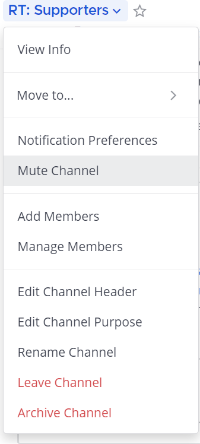](https://rebeltoolkit.extinctionrebellion.uk/uploads/images/gallery/2024-01/QSOchannel-header-resized.png)
then click on **View Info**.
If you want to change what is written in the header click on **Edit Channel Header**. If you want to add links to this section the process is the same as [here](#bkmrk-adding-links).
**Please confirm with your Group Admin before making any change to the Header.**
### Sending Messages (14)
You can write messages by typing in the box at the bottom of the screen. To send them hit **Enter**. The message will be sent to the Channel or Direct Message you are currently in.
#### Alerting people to messages
If you want a particular person to read a message you are sending, you can tag them by writing '@' followed by their username (e.g. `@xrukadmin`). This will send them a notification.
**Important:** You can also use `@all` or `@channel` to notify everyone in a Channel but please use this responsibly as for larger groups it is rarely appropriate and may annoy people.
#### Sending Direct Messages (7)
To send someone a Direct Message (instead of posting in a Channel):
1) Click the **+** sign to the right of the heading **DIRECT MESSAGES** (7)
2) Select the users you want to message (you can create group messages with up to a maximum of 6 people)
3) Write and send your message
All of the Direct Message conversations that you have had will appear below the **DIRECT MESSAGES** heading to make it easier to contact them again.
Next to each name, an icon shows whether they are online or not.
Clicking on a username will display your Direct Message history with that user.
Users you do not need to contact regularly can be removed from this list by pressing the cross to the right of their name.
#### Sorting your Direct Messages
Much like with Channels, Direct Messages can be sorted alphabetically or most recent first. You can also choose how many to show (all, 10, 15...). To change these settings hover over **DIRECT MESSAGES** then click the three dots to the right of it.
#### Replying to messages
It is possible to reply to messages posted in Channels or Direct Messages using 'Threads' (5). These are helpful if you are having multiple conversations at once so people don't get confused about which messages are related to which discussion. You can click Threads on the left-hand side of the screen to see these conversations.
To reply to a message in a thread click on the **Reply** icon:
**Note:** For a full explanation you can watch the [threading messages](https://tube.rebellion.global/videos/watch/990bacfe-a3df-4b5f-9870-8818f2ba3db5) video (5 mins).
#### Reacting to messages
To add a reaction (e.g. a thumbs up or heart icon) to a message click on the **Add Reaction** icon:
.
To post a reaction to a message you can click on the Emoticon icon on the bottom right of the message (16).
#### Searching for messages (10)
Use the search box to find messages and replies that match the search terms that you enter. All Channels that you are a member of in the current Team are searched.
**Note:** For a full explanation you can watch the [Searching for messages](https://tube.rebellion.global/videos/watch/0def354f-557d-411b-950d-bf61a6e6a59b) video (3 mins).
#### Saving messages
You can click on the 'save' icon (like a bookmark) next to a message to save it for later, then bring up all your saved messages by clicking on the 'Saved posts' icon at the top right of the screen (11).
**Note:** For a full explanation you can watch the [Saving messages](https://tube.rebellion.global/videos/watch/0c6a4cdc-94f4-4493-9f1b-d4ad757df710) video (3 mins).
#### Adding links
To add a picture click on the paperclip icon on the bottom left hand side of the screen (15).
To add a nicely formatted link to your message, write the text you want to show in square brackets immediately followed by the link URL in round brackets. For example:
`Check out this fantastic [guide to Mattermost](https://rebeltoolkit.extinctionrebellion.uk/link/394#bkmrk-page-title)!`
will look like:
Check out this fantastic [guide to Mattermost](https://rebeltoolkit.extinctionrebellion.uk/link/1066)!
when sent.
#### Other formatting tips
Here are a few simple tips to make your messages look better:
- \*\*bold\*\* displays as **bold**
- \_italic\_ displays as _italic_
- \~\~strikethrough\~\~ displays as ~~strikethrough~~
- \`\`\`typewriter style\`\`\` displays as ```typewriter stye```
- \>quote displays as
>quote
#### Copying messages
It can be difficult to copy messages in order to share them in multiple Channels without losing the nice formatting and any links.
Currently the only way this is to:
1. Open settings (17) and click on **Advanced**.
2. Set **Enable Post Formatting** to **Off**.
3. Copy and paste the messages that you want to share.
4. Return to **Advanced** and set **Enable Post Formatting** back to **On**.
### Rebel Compass (8)
This takes you to a bunch of links and resources from XR Global including plaforms, videos, documents, trainings, events etc.
### Notification settings
**Note:** For a walkthrough of all the content in this section you can watch the [Notifications](https://tube.rebellion.global/videos/watch/0e7e6f19-6ab8-47de-b770-fc19923f47c5) (5 mins) and [Account Settings](https://tube.rebellion.global/videos/watch/ad184cf5-f794-4d20-a539-0b26072fe5bd) (4 mins) videos.
To get the most out of Mattermost we strongly encourage you take the time to get your notification settings set up just right. This will make sure that you don't get overwhelmed by huge numbers of irrelevant notifications, and also that you won't miss any important messages that you need to see.
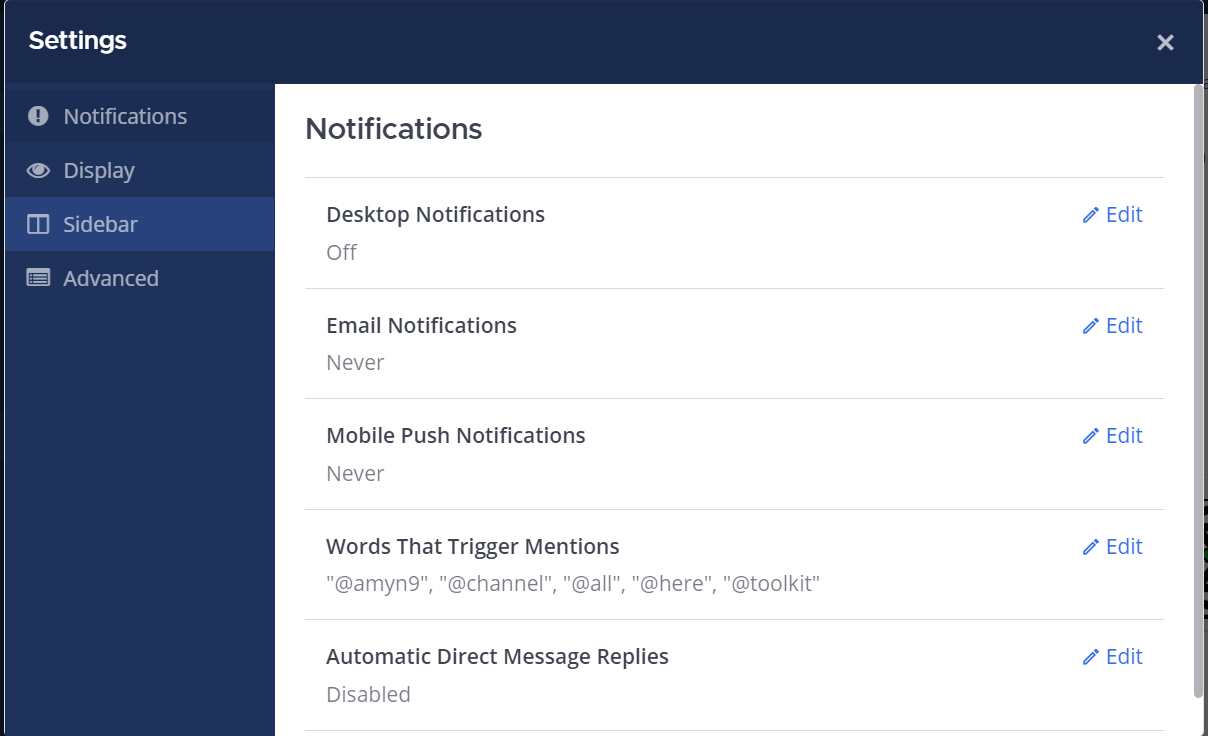
To modify the notification settings in Mattermost, open your settings (17) and click on **Account Settings**. You will then see this screen:
[](https://rebeltoolkit.extinctionrebellion.uk/uploads/images/gallery/2024-01/settings.PNG)
#### Setting desktop/mobile notifications
To modify these settings click **Edit** under the sections labelled **Desktop Notifications** or **Mobile Push Notifications**.
We recommend that **Send desktop notifications** (under **Desktop Notifications**) and **Send mobile push notifications** (under **Mobile Push Notifications**) are set to either **For all activity** or **For mentions and direct messages**.
#### Enabling email notifications
You can enable email notifications of Mattermost messages. To do this:
1) Open your notification settings (see 'Notification Settings' above)
2) Under **Email Notifications** click **Edit**
3) Under **Send email notifications** tick **Immediately**
4) Click **Save**
#### Setting notifications for reply threads
To be notified of all messages that happen in a [thread](#bkmrk-replying-to-messages) you participated in you should:
1) Open your notification settings (see 'Notification Settings' above)
2) Under **Reply notifications** click **Edit**
3) Tick **Trigger notifications on messages in reply threads that I start or participate in**
4) Click **Save**
#### Personalising your mentions
It is possible to get notified every time a certain word gets mentioned in one of your channels. By default this will just be your username including the `@` symbol (e.g. `@myusername`) but you can add extra words if you like. For example, if you do a lot of work on the Rebel Toolkit you may want to add `toolkit` to your list of words that trigger mentions.
To set this up:
1) Open your notification settings (see 'Notification Settings' above)
2) Under **Words That Trigger Mentions** click **Edit**
3) Tick any of the tickboxes that apply
4) Add any additional keywords (e.g. `toolkit`) in the space below the tickboxes
4) Click **Save**
#### Seeing recent mentions (10)
Click on the top right @ sign to see posts where you have been mentioned recently.
#### Grouping unread messages together
You can get Mattermost to collect unread messages at the top of the sidebar so they are easier to find. To do this:
1) Open the Mattermost settings (see 'Notification Settings' above)
2) Click on the **Sidebar** tab
3) Under **Channel Grouping and Sorting** click **Edit**
4) Tick **Unreads grouped separately**
5) Click **Save**
#### Setting up 'out-of-office' messages
If you will not be reachable on Mattermost for a while and would like to set an automatic reply that anyone who messages you will see then you should:
1) Open your notification settings (see 'Notification Settings' above)
2) Under **Automatic Direct Message Replies** click **Edit**
3) Tick **Enabled** and write your message
4) Click **Save**
You can follow the same process to disable the automatic messages when you return.
#### Getting rid of annoying messages from 'System'
In your Channels you will probably see lots of messages from 'System' notifying you that people have been added to, and left the Channel. You can turn these off by:
1) Open the Mattermost settings (see 'Notification Settings' above)
2) Click **Advanced**
3) Set **Enable Join/Leave Messages** to **Off**
### Further information
#### Setting your status
To change your status (which can be **Online**, **Away**, **Do Not Disturb** and **Offline**):
1) Click on your image/icon at the top left of the screen (2)
2) Click on the option that you want
#### Adding a profile picture
To add a profile picture to your Mattermost account:
1) Click on (2) in the top right corner of the screen
2) Click on **Profile**
3) Scroll down and click **Profile Picture**, then click **Edit**
4) Upload an image of your choice
5) Click save!
#### Logging out
To log out of Mattermost, click on (2) (your profile picture) in the very top right corner of the screen and then click on **Logout**.
#### Other places to find information about Mattermost
There is a help button (12) at the top right hand side of the screen.
Here is list of other resources about Mattermost that you might find useful after reading this guide:
- [Mattermost User’s Guide](https://docs.mattermost.com/guides/user.html)
This is the official guide to Mattermost. It goes into a lot more detail than this guide but is more complicated and not all of it is relevant to XR.
# When to use the Forums instead of Mattermost
#### What is the difference between chat and discussion?
Chat (Mattermost) and discussion (Forums) are two very different things. This document attempts to explain their individual uses.
Think of chat (Mattermost) as being a bit like conversations around a table in a cafe or pub or at a large dinner. There are multiple things going on at the same time, it may get noisy, threads get interrupted and side-tracked. There is a lot of good social communication going on, but the focus is more on exchange of ideas than working on a particular topic. It’s a big room, and you can move around multiple tables listening to what is going on and chipping in.
Think of discussion (Forums) as more like a meeting or conference with break-out sessions going on in parallel. Each category is a session, and each session might include several agenda items (topics). The sessions are focused on a particular area and are working on solving problems and developing ideas in that area.
Some people need one, some the other, some both.
Chat is more ephemeral; discussion is where work gets done. Trying to have a single system handle both inevitably involves compromises and results in confusion. In chat, it is often difficult to find previous ideas, and you therefore don’t want useful information which you might need again to be lost in there. In discussion, you are focussed on a specific topic and may want to avoid immediate distractions – difficult in chat rooms.
Chat benefits from quick responses, so a good mobile app can be important, but we must be careful not to exclude those without smartphones. One failing of the widely-used WhatsApp chat application is that it does require you to have a smartphone to use it. Even Signal, which can be used on a laptop without a tethered phone, requires access to a smartphone to initially set it up.
Discussion requires more active listening, considering what is said and providing a thoughtful response. Here mobile ‘presence’ is less important, and the layout needs to make it easy to find contributions and provide more detailed replies. A larger screen than a phone and a proper keyboard are often useful.
#### What tools should I be using?
Most Rebels involved in organising local or working groups will need discussion and should be on the Forum.
Less active people may not need online discussion at all, or they may occasionally respond to a call to participate in an important decision for the group, dipping into a discussion forum to do so.
For a local group, chat is probably what most people will use for day to day keeping in touch with each other.
One big advantage of Mattermost is that it does not require a smartphone to use it.
Furthermore, by employing a platform that is run by XR and used across all international groups it is both robust and secure, and enables the local, regional, national, and international chat channels that a user chooses to follow to all appear in one place.
Working and organising groups will probably be using both chat and discussion.
#### Further Information
For further information about this important distinction please refer to this [blog post](https://blog.discourse.org/2018/04/effectively-using-discourse-together-with-group-chat/).
# Mattermost Moderation
What is **Moderation**, why do we need it and who does it?
These questions arise with any open chat service like **Mattermost**, and we have to have guidelines on what is acceptable. Sometimes, posts can get heated and hurt people's feelings, so some sort of feedback and, possibly, corrective action, is necessary. That's what **Moderation** is all about - keeping the posts within agreed limits of acceptability for all our users.
So, who does it? Well, we're a **Self Organising System** and, like it says in the [Online Behaviour Guide](https://rebeltoolkit.extinctionrebellion.uk/link/490#bkmrk-page-title): "We owe each other a duty of care to make our presence on our communications platforms a comfortable and beneficial experience." Maintaining good behaviour falls to all of us, and we need to be careful to maintain this when starting or responding to a post.
Now, there will be times when you may find a post that fails to meet what you feel are acceptable standards. You may, of course, decide to reply to it directly yourself, and explain why you find it unacceptable - possibly suggesting, to the poster, a potentially more acceptable way of making their point. Alternatively, you might bring it to the attention of the channels's Team Admin(s) by Direct Message - you can find their usernames in the Channel Member drop down list.
However, there will sometimes be a need for more formal oversight, particularly with channels like **Town Square** and **Off Topic**, where greater numbers of members congregate and more diverse topics are discussed. This is where our own **UK and Regional Moderators** can help. Their objective is to basically keep an eye out for posts which may not be appropriate either in terms of content, wording or subject. Our Moderators are members of XR UK and have previous experience in looking after spaces like Mattermost, so you're in good hands. In order to moderate fairly, they will act anonymously - that is, they won't use their normal Mattermost username, but a special username containing the Moderator term, like `@UKModerator3`. This will allow our Moderators to be able to use MatterMost as ordinary rebels themselves , avoiding any interaction with other users being constrained by knowing they are Moderators, and helps to protect them from personal harassment or entreatment to restore edited/deleted posts.
Moderators will be able to **edit and/or delete** any posts they find unacceptable. Users will be warned if their posts are in conflict with our criteria for acceptability and, in the first instance, be asked to rephrase the offending post and, possibly, to refrain from continuing with the topic. If this is not possible, because the original poster refuses - or the post itself needs to be removed - then the post will be deleted. On edit or deletion, the reason for this action will be published, by the Moderator, in the channel. Further discussion on this action, or the post itself, will be limited by the discretion of the Moderator/s. Hopefully, the issue will be resolved amicably and an agreement reached by all parties. However, continuing the discussion may result in further a warning and/or subsequent action to bring the matter to a close.
As stated above, applying the moderation function is not a means to control discussion, but to make our chat space as comfortable and acceptable to everyone in it. There will be problems but, with supportive and constructive moderation, we will achieve this aim and minimise disruptive and negative behaviour in our Mattermost channels.
# How to download and use the Mattermost App
XR's Mattermost is held on our own secure servers and the address [Server URL] is https://organise.earth
1. Go to Playstore [Android] or App Store [iPhone]
2. Search for Mattermost
3. Select the Mattermost app - if you see several options e.g. Mattermost, Mattermost Business, Mattermost Classic or Mattermost Beta, select the one that either only says **Mattermost** or **Mattermost Business**. Mattermost Classic is for older phones and Mattermost Beta is for testers.
4. Once the app has downloaded, open it and you'll see the Welcome screen. If you want to learn more, select Next and scroll through the screens. If you want to sign in straight away, select Sign in.
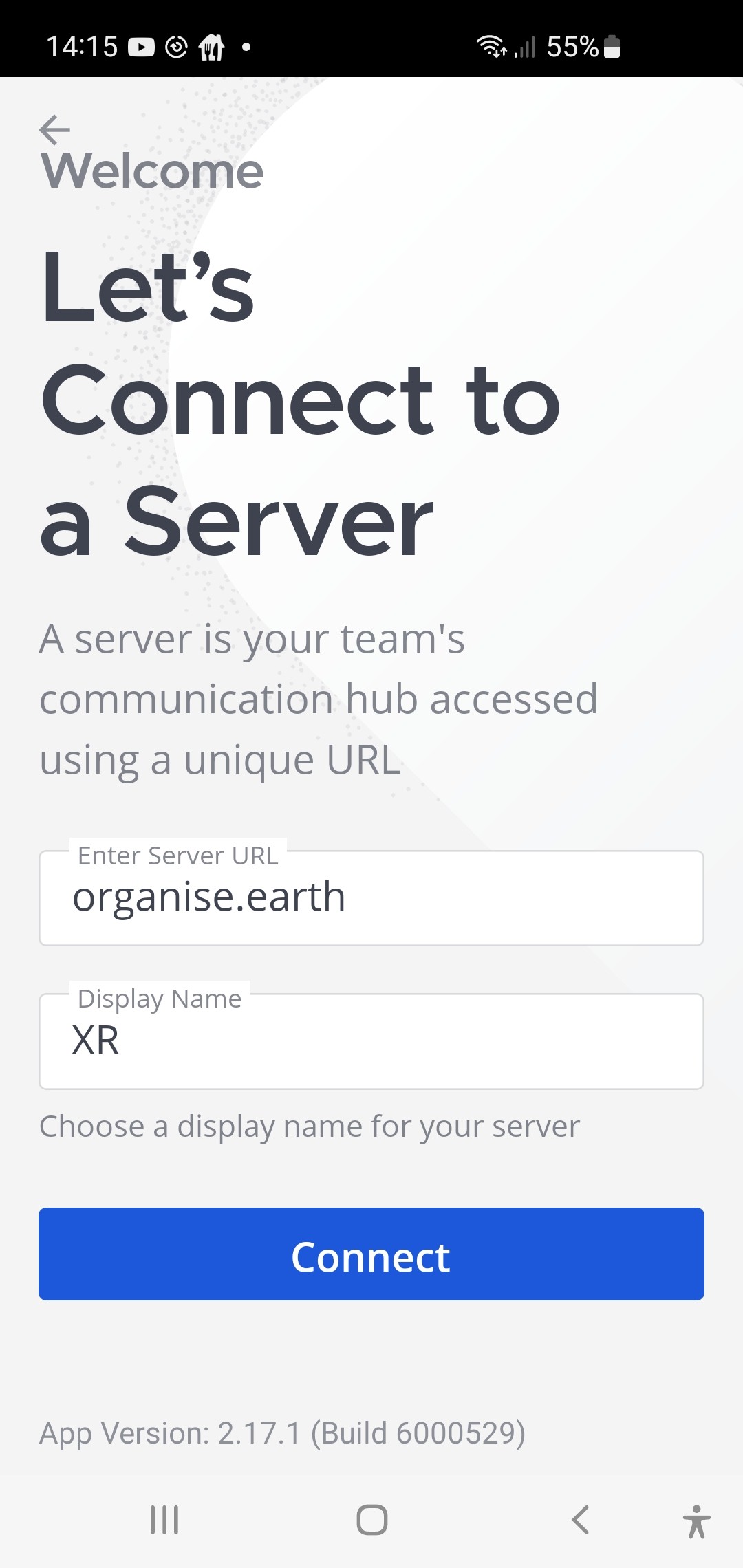
5. Add organise.earth in Enter Server URL
6. Add anything you like in Display Name - XR makes sense
7. Select Connect
**Next Log In to Your Account**
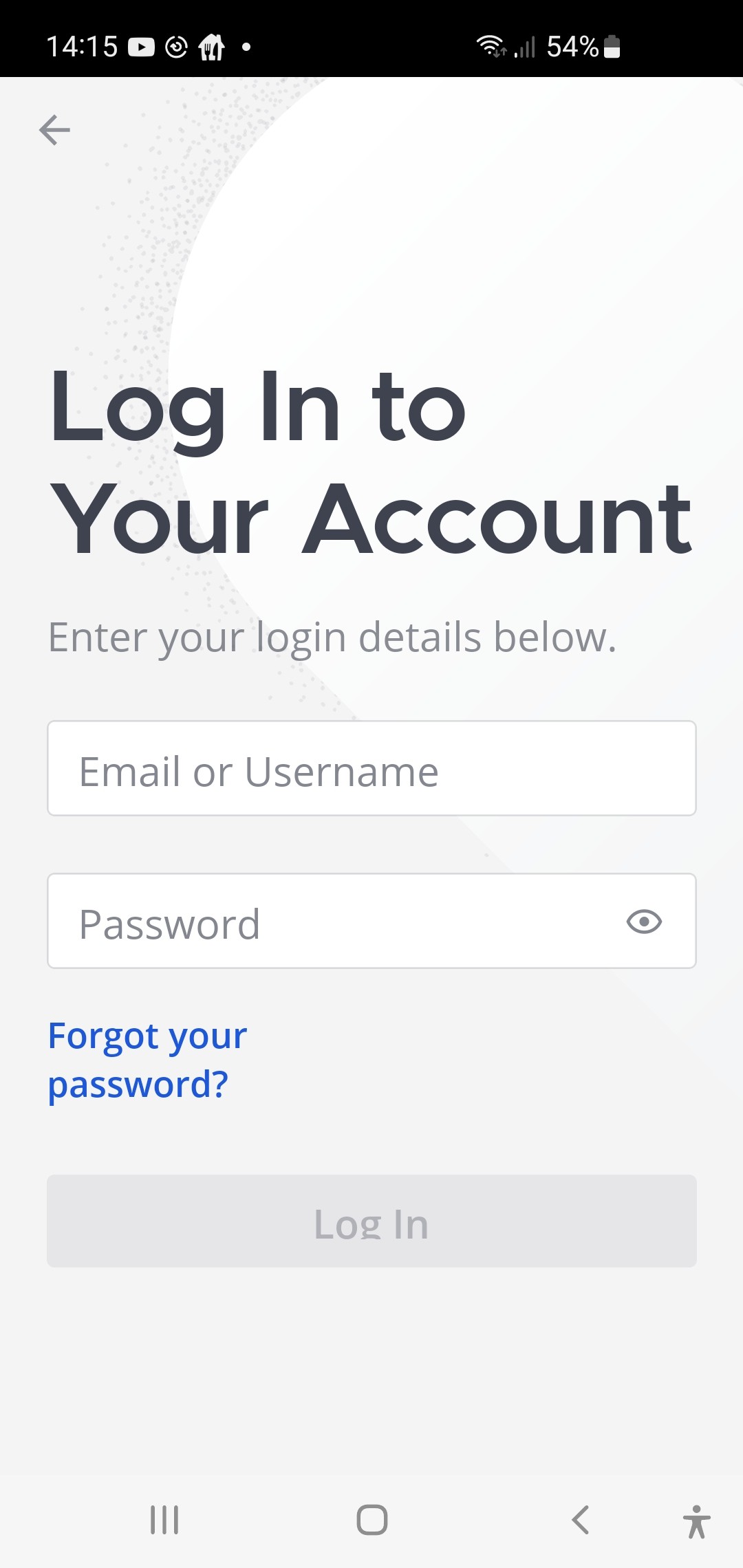 9. Add your login details and then select Log In. The more messages you have, the longer it takes to load the info so please be patient.
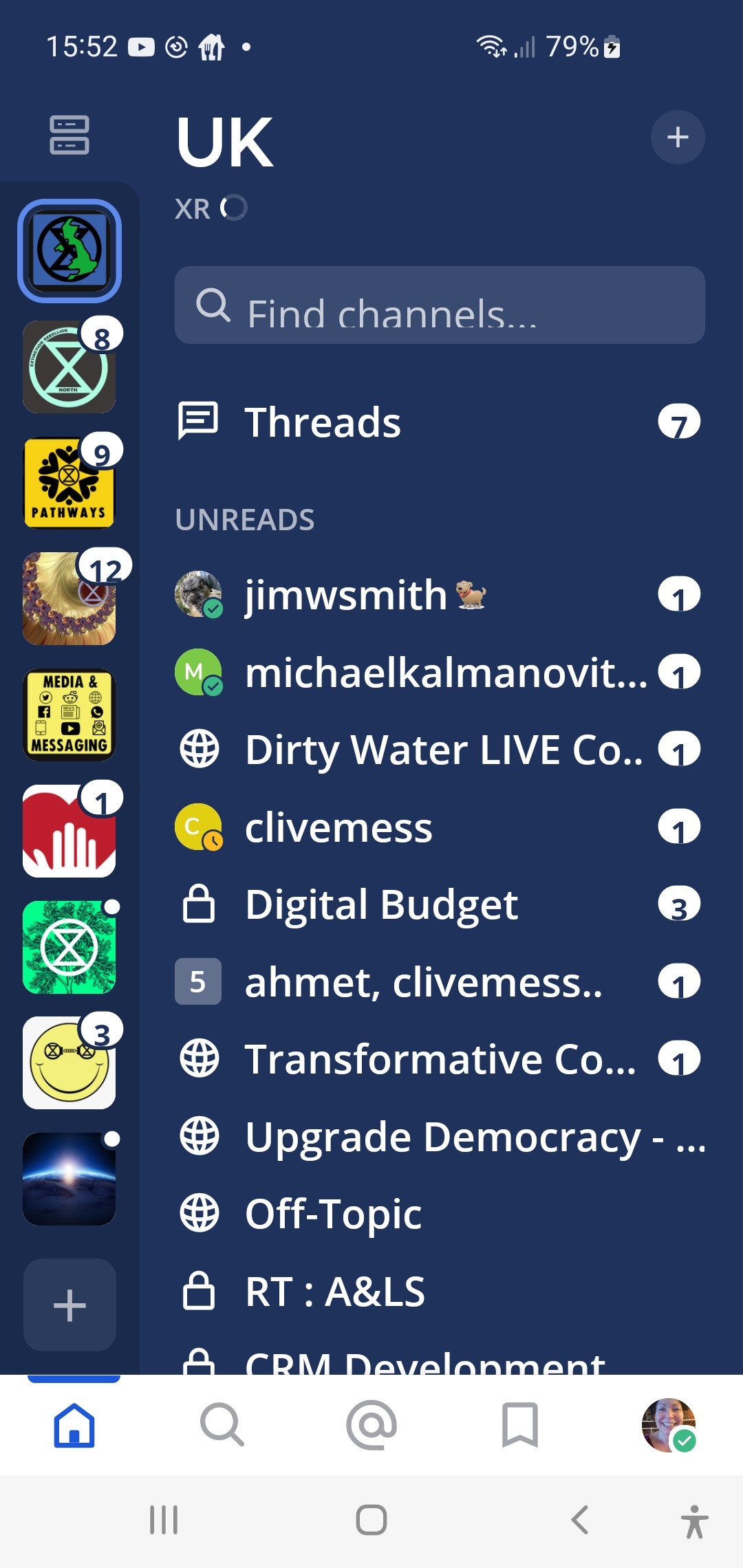
**Once logged in you'll see this screen**
 #### Now you're in, here's some handy tips!
1. **White/Red circles with numbers:**
- Mattermost is guiding you to go there first
- These are notifications
- The number in the white circle is the amount of messages where your name/handle has been used/tagged - therefore those messages are specifically for you
2. **White/Red dot with no number:**
- There are unread messages but you haven't been tagged in them so it's less urgent to read those
#### Now you're in, here's some handy tips!
1. **White/Red circles with numbers:**
- Mattermost is guiding you to go there first
- These are notifications
- The number in the white circle is the amount of messages where your name/handle has been used/tagged - therefore those messages are specifically for you
2. **White/Red dot with no number:**
- There are unread messages but you haven't been tagged in them so it's less urgent to read those
3. Use **Find channels** to search for **any** channel [chat] in **any** of the Teams you're already in. [Teams are the coloured squares on the left] You don't need to select a specific Team first.
4. Select the **@ symbol** at the bottom of your screen to find any message in any Team in any Channel where you've been tagged.
5. Select the **Bookmark symbol** at the bottom of your screen to find any message you've saved.
6. The **plus sign +** top right of the screen:
- Browse channels: Find and Join any **public** channel within any of the the Teams you're in. You can't find **private** channels if you're not a member of them.
- Create New Channel: Set up a public or private channel within the Team you've selected and then add people to the channel.
**NB important:**
- Only create a new channel directly within Mattermost if the channel is going to be temporary. If it's going to be long-standing or permanent, ask your Group Admin to create it as part of a Hub group on the XRUK Hub - this helps keep the movement transparent so we can all see what channels exist.
- To add people to your new channel - first, they need to be in the Team where you've created the channel so consider creating it in the UK Team as we're all in the UK.
7. Open a Direct Message: Set up a direct message with 1 or up to 7 people.
**NB important:**
- To add a person/people to your direct message, they need to be in the Team you've selected. If you can't find them, select the UK Team and then select the + sign and then Open a Direct Message.
# Creating Broadcast Messages on Mattermost
Broadcast messages on channels such as Movement Broadcast and Rebellion Broadcast have a specific style. Which is as follows:
- Image at the top which is relevant to the content.
- MESSAGE TITLE in Caps and Bold.
- Message text with Emoji’s where relevant (don’t over do the emoji’s).
- Where links are included the links should be shortened and underneath the relevant text, not beside it. This keeps the text more readable.
#### Example Message

#### Markdown used to create the message
```

#### **TEST BROADCAST MESSAGE TITLE**
Text of my message
:location_marker: Location Info
:date: Date / Time Info
:arrow_forward: Get more info [here:
[https://xrb.link/k49fWf0hy3](https://xrb.link/k49fWf0hy3)
```
Points to note about the above Markdown:
1. The first line of the message is the in-line image, created using the Imgur platform and is broken down as follows:
- The ! At the beginning denotes an in-line image
- The [imgur] part of the line is the image Alt Text, and can be just left as [imgur]
- The () part of the line is the link to the image. You need to ensure the .jpeg is included.
2. The message title has four hashes and a space before it. This makes the text a small heading.
3. There are two asterisks immediately before and after the message title. This makes the text bold.
#### Using the XR Link Shortener
[https://xrb.link/](https://xrb.link/)
This is very self explanatory. You do need a Mattermost Account to use this.
#### Using Imgur image platform
[https://imgur.com/](https://imgur.com/)
Imgur is free to use, but you will need an account.
Go to imgur.com, login and click on New post.

Upload the image.
Click on your Avatar in the top right of the screen and from the menu select Images.
Click on the image you just uploaded.

In the Sizes section of the screen (shown above) choose either Medium Thumbnail or Large Thumbnail.
Then Click on the Copy button next to the Markdown Link.
Paste the copied text into the top of your message. You need to change the text to add an exclamation mark to the start of the line. Example below:
```

```
Click on the message preview icon (the eye) to check that the message text and image are displayed correctly.
More information on formatting messages in Mattermost can be found below.
### Related Information
#### Guide to Formatting messages in Mattermost
[https://docs.mattermost.com/collaborate/format-messages.html](https://docs.mattermost.com/collaborate/format-messages.html)
#### Broadcast Comms Guide
Guide to help UK groups plan and deliver their comms: [https://xrb.link/K28cCF3CE](https://xrb.link/K28cCF3CE)
#### Broadcast Style Guide
Follow XR design and stay formatted when crossing channels.
Here’s how: [https://xrb.link/k49fWf0hy3](https://xrb.link/k49fWf0hy3)
# Mattermost Boards
#### Introduction
Mattermost Boards is a project management and task-tracking tool integrated directly into the Mattermost platform. Boards allows teams to organise tasks, define workflows, and collaborate on projects within a single, secure environment.
Mattermost Boards can do a lot! If you'd like to do a deeper dive and find out more, e.g. how to create a board, create a card template, filter, add properties to a card and much more, please check out the
Mattermost support info.
#### Basic steps for working with an existing board
##### 1. Sharing and accessing Mattermost Boards
- Create a shared link, or invite team members directly.
- Board admins can select Share in the top-right corner to manage access and then add the rebel's handle.
- Or, boards can also be linked directly to channels to automatically provide access to all channel members.
[](https://rebeltoolkit.extinctionrebellion.uk/uploads/images/gallery/2026-03/screenshot-2026-03-31-113647.png)
##### 2. Steps to create a new card from an existing template
- Open the board where you want to add the card.
- Click the word NEW [top right in blue] or the + sign at the top of a column.
- The new card will be created with pre-populated fields (properties, description) based on that template.
[](https://rebeltoolkit.extinctionrebellion.uk/uploads/images/gallery/2026-03/screenshot-2026-03-31-113927.png)
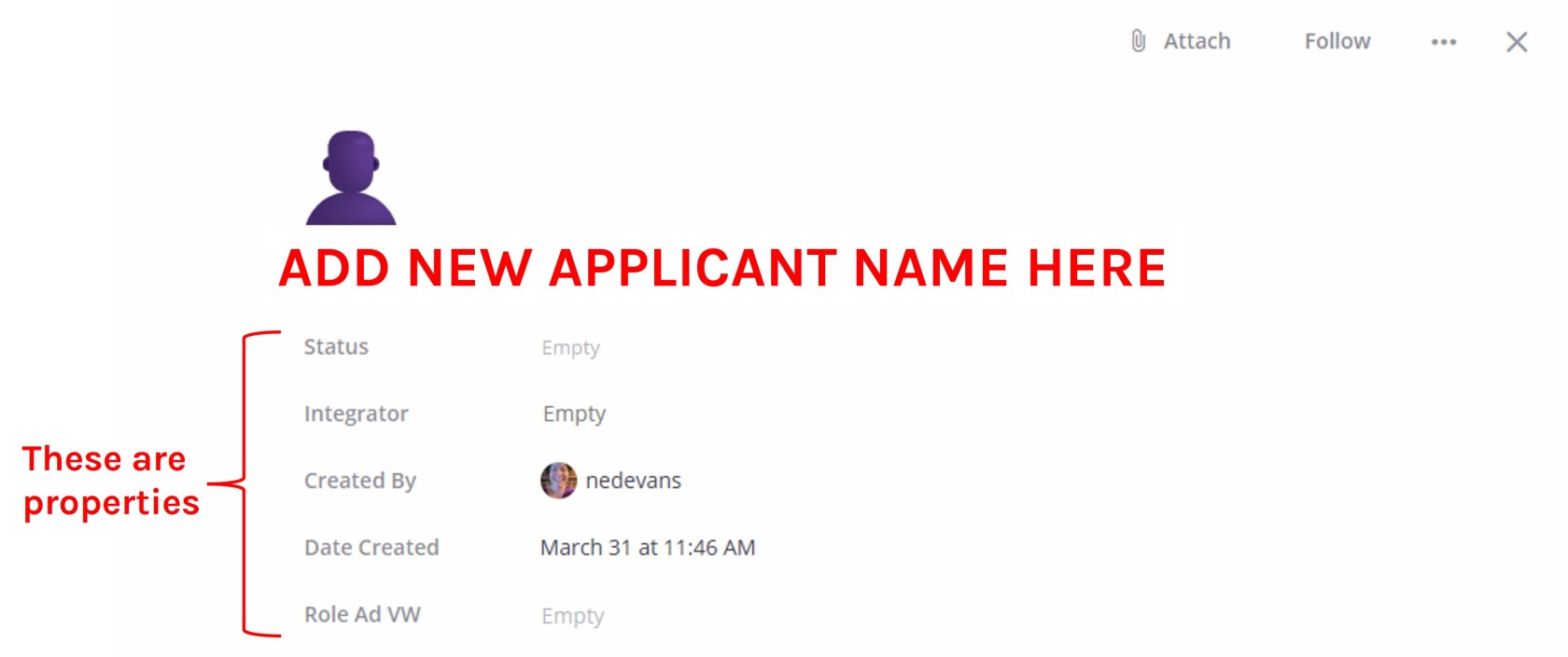
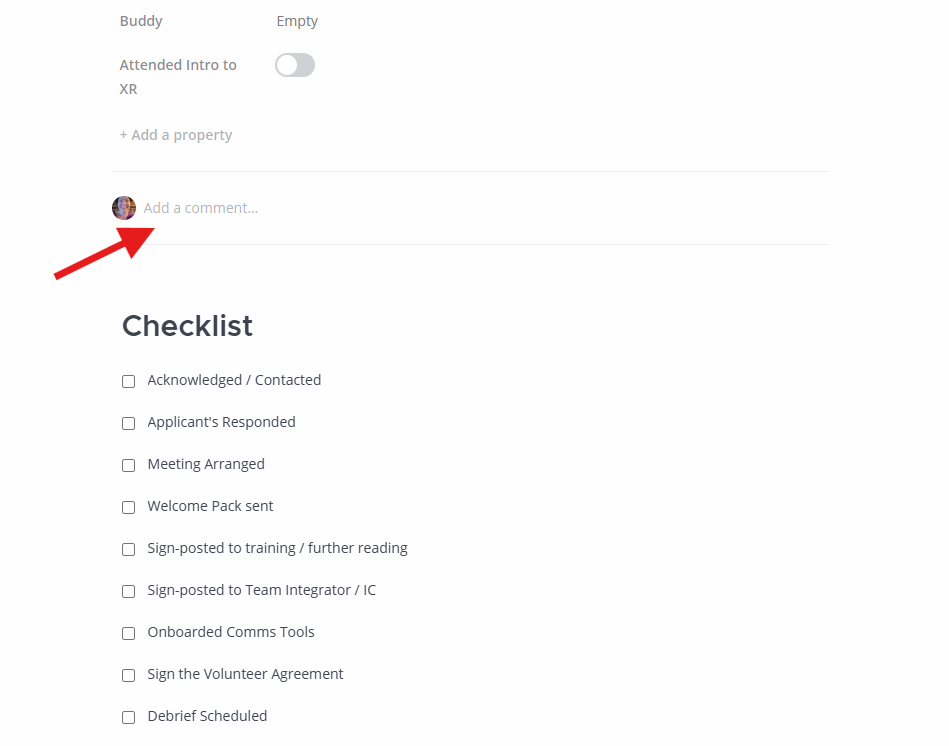
##### 3. How to fill 'properties' on a card
Properties are common to all cards on a board.
- Open the card and click on a property field to input or select info (e.g. text, numbers, dates, people, links).
- Comments are useful for keeping a note of updates on progress.
- Checklists are handy for quickly seeing what tasks have been completed.
[](https://rebeltoolkit.extinctionrebellion.uk/uploads/images/gallery/2026-03/card-properties.jpg)
[](https://rebeltoolkit.extinctionrebellion.uk/uploads/images/gallery/2026-03/screenshot-2026-03-31-115533.png)
- You can move a card from one column to another by updating the 'Status' property or manually dragging cards from one column to another.
##### 4. How to search for a card
1. Use the Search Bar: in the top-right corner of the board view, click the Search cards field (magnifying glass icon).
2. Type Keyword: start typing the card title, description, or content you are looking for. The board will filter cards in real-time to match your text.
##### 5. How to add links to a card
- Open the card and add or use an existing URL property to paste in links directly.
- Or insert links into the card's description or comments section.
- Mattermost uses Markdown as a text editor.
- You can create a short link by using square and round brackets.
- Open a square bracket [type the name of the link and then close the bracket].
- Open the round bracket (and paste the link, then close the round bracket) Don't use any spaces inside or between brackets. If the name of your link is more than one word, you can use spaces to separate the words inside the square brackets.