Big Blue Button and Jitsi
Alternatives to using Zoom
- Big Blue Button Basics
- Automatic Closed Captions in Big Blue Button
- Big Blue Button Room Settings
- Jitsi Meet
Big Blue Button Basics
BBB is at meet2.organise.earth
Choose Big Blue Button because:
- it's free to use,
- gives unlimited time,
- you can run as many meetings as you like at the same time,
- it sits on our XR secure servers (so more secure than Zoom),
- AND runs on renewables!
Zoom is the most commonly used video conferencing tool, however it doesn’t belong to XR so isn’t secure. If your topic of discussion is extremely sensitive and you don't want any interception then you should NOT be using Zoom. Zoom can view recordings of meetings and view messages and access links sent via Zoom chat. Big Blue Button is XR’s own video conferencing tool and more secure than Zoom. BBB is held on our XR secure servers and runs on renewable energy.
A short presentation comparing Zoom and Big Blue Button is available here.
A recorded video of the above presentation is here.
Online Safety in Big Blue Button meetings
Consider online safety - simple, practical guidance here.
How to Use BBB Video
If you prefer visual learning to the instructions below, you can watch this video guide to learn the basics of using Big Blue Button.
Requesting a BBB Account
The advantage to having an account for your XR group is that anyone (irrespective of whether they have a Hub log-in or not) can access a BBB meeting. Once you have an account, you can create as many 'rooms' as you like within your account (giving each room a name such as Anchor Group, M&M, Actions etc) and each room has a unique URL. You copy the URL for the room and send that with the date and time of the meeting. Then attendees click on the link at the start of the meeting, add their name and the BBB will open in a new Windows tab. So a Local Group can have a BBB account and then run their XR meetings even if not everyone present is on Mattermost & the Hub.
To get an account:
- Email: bbb@organise.earth
Email from your XR group's email address and not a personal email address. In your email, include which group you are in. Once the account is created, you will be emailed the account details. Your group's email address will be the login/sign-in name and you can change the password to one of your choice.
Joining a call
When you click the link to join the call you will be asked
to connect your audio and webcam. Select Microphone, and check that
if you speak you hear yourself coming back through your device. Don't
worry, no one else can hear this!

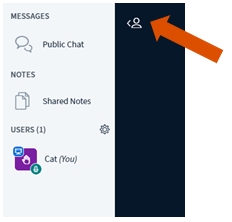
Welcome to BBB! This large Welcome screen takes up most of the window, but if you click the whiteboard symbol in the bottom right corner it will go away and there will be more space to see other people on the call. Down the left-hand side you can see who else has joined, and if they are connected to video and audio, and the Public Chat area.
If you can't see the columns on the left, look for the little person
icon in the top left corner and click that to open up the sidebar.
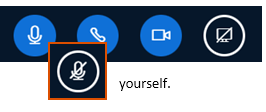
In the main window, you will see buttons at the bottom, and this is where you can control your Audio and Video. Click the microphone to mute or unmute yourself.
The button that looks like a video camera is to turn on your webcam.
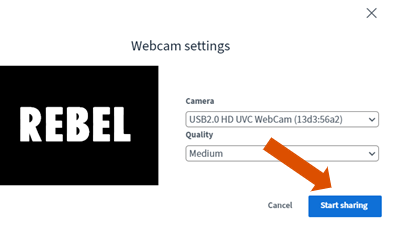
Like your audio, when you first use the 'log in to the meeting', there will be a pop-up window
where you can choose your settings, and you will see a preview screen. Your camera should be automatically detected your camera, so unless you want to choose a
different webcam, just click Start Sharing.

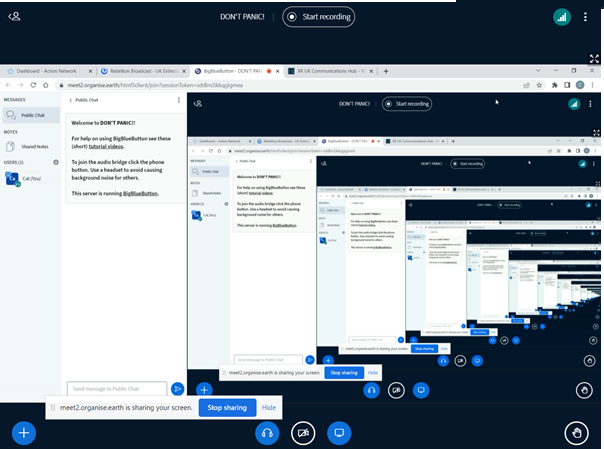
Once screen
sharing begins it will give you a delightful "rabbit hole" effect of
windows within windows - don't worry, once you switch to a different
tab or window this will disappear - just don't use the BBB tab to
open the website you want to share, or you will automatically come out
of the session!
Note that you cannot screen share on a mobile device.
There are a few other options if you click the three vertical dots in the top right of the window.
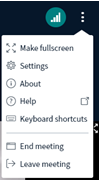
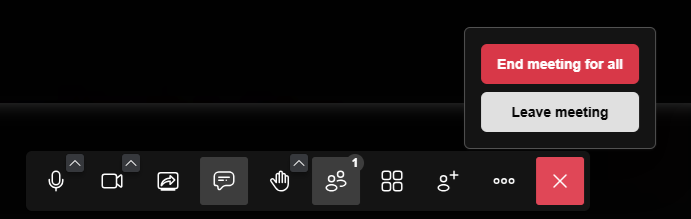
At the end of the meeting you can go here to End meeting or Leave meeting - or you can just close the tab in your browser and you will have left! Once everyone has left the meeting, even if no one clicks End, it will automatically finish.
You can have a meeting on BBB for as long as you like, there is no time limit.
Big Blue Button on a Mobile
As with using BBB on a computer, when you log in you will need to confirm your microphone and camera settings - it will detect them automatically from your device, so you don't need to change anything. Your phone may also ask you to 'Allow' BBB to use your microphone and camera, click 'Allow' to both of these.
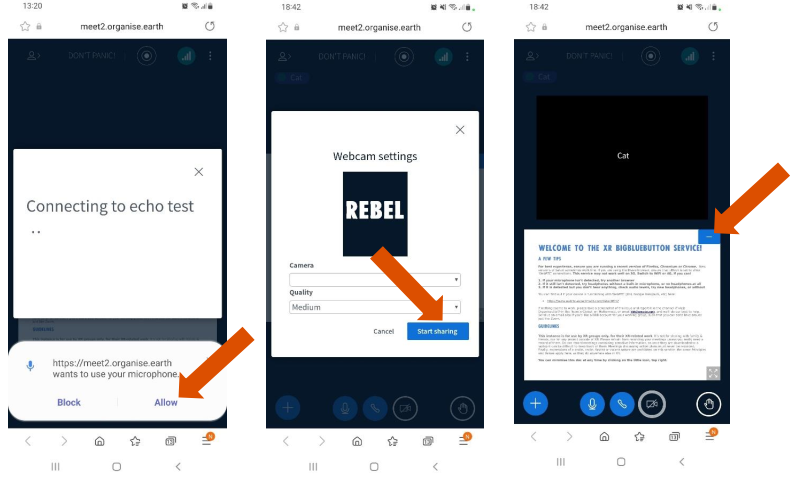
Get rid of the Welcome screen to make more space to see the other folks on your call!
To pull up the list of the other people on the call and the Public Chat, click the little person icon in the top left of the screen. Click the same icon to minimise this column so you can see who you are speaking to again.
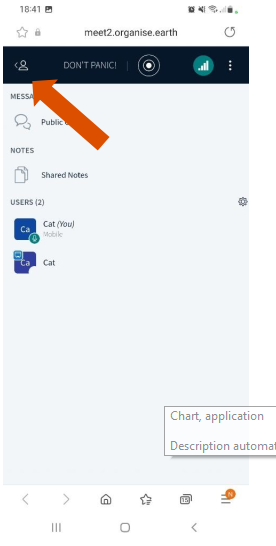
Click on the three vertical dots on the top right hand of the screen, or close the internet browser to leave the call.
Automatic Closed Captions in Big Blue Button
Background
BBB introduced automatic closed captions in version 2.6. Both options for manual and automatic closed captions exist which can be confusing.
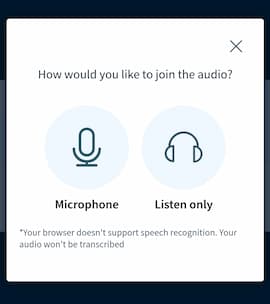
The automatic transcription is only available for browsers that support Speech Recognition (Google Chrome, MS Edge, and Safari). If you join with non-supported browsers, you will see a warning at the bottom of the join audio dialogue - "Your browser doesn't support speech recognition. Your audio won't be transcribed".
Please note that Windows 11 now offers on-device closed captioning that may be more appropriate for your needs. Check this out on the Rebel Toolkit closed captioning page or Microsoft's documentation page.
Another option is to use Jitsi Meet.
Using Automatic Closed Captions
There are two aspects to Automatic Closed Captions:
- The option to have your words as a presenter/contributor transcribed.
- The option to view transcribed words.
To have your spoken words automatically transcribed you need to select the option when connecting to the meeting. You cannot do it once in the meeting, however you can leave the meeting and rejoin to select this option.
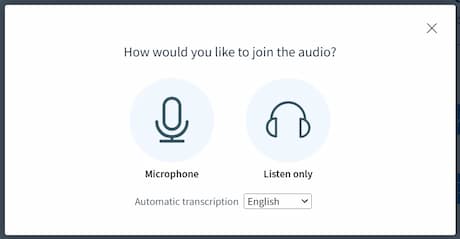
Selecting the correct language is important as it helps the translation engine.
This option is not available on iPhone or on Android, as per the screen shot below:
To View captions on a Desktop/Laptop computer
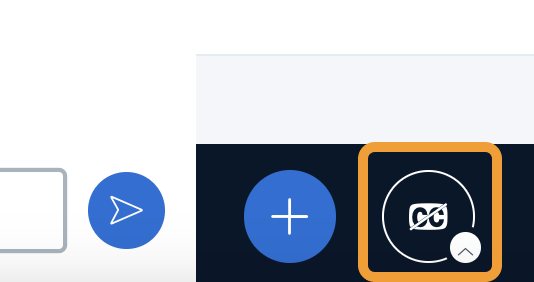
When one or more users have enabled transcription, a CC button will appear. To view the transcriptions for those with ‘CC’ in their “who is talking” icon, press the CC button.
The ‘CC’ button is in the bottom left of the BBB screen.
To View captions on Mobile device
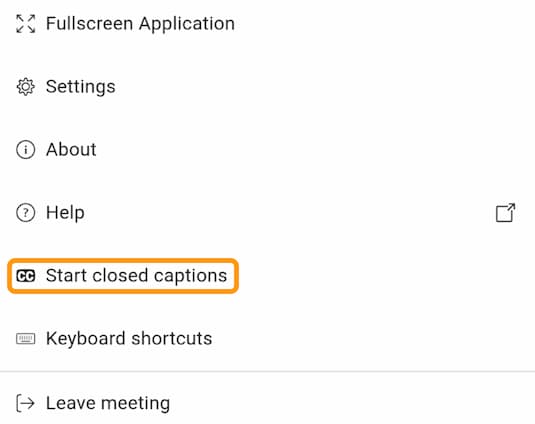
For mobile devices, the ‘CC’ button acceible via the three dots menu at the top right corner. Then select "Start closed captions".
Maximum Confusion – Manual and Automatic Closed Captions Together
It is possible to have both Manual and Automatic Closed Captions. Manual closed captions is where someone manually types the words of the speaker into the meeting captions. This is mostly used for translations. Below shows the ability to enable the viewing of the two different kinds of captions. The left hand CC option is for viewing manual captions. The right hand CC with the up arrow is for viewing automatic captions.
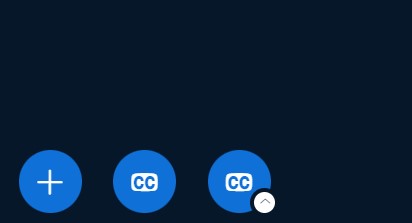
Manual Closed Captions info here.
Big Blue Button Room Settings
BBB Meeting Room Settings for Three Different Scenarios
Scenario 1. An open meeting, which anyone can join, especially people outside of XR.
Login to your BigBlueButton account
Either add a new room, or edit the settings of an existing room.
Go to settings. For an open access meeting make sure the following are set:
- Allow room to be recorded (optional)
- Require users to be signed in before joining. OFF
- Require moderator approval before joining. OFF
- Allow any user to start this meeting. OFF
- All users join as moderators. OFF
- Mute users when they join. ON
The setting in this scenario mute the users when they join to prevent interruption while a meeting is going on.
Scenario 2. A local group meeting where the attendee's will be known, but again is relatively open.
Login to your BigBluebutton account
Either add a new room, or edit the settings of an existing room.
Go to settings. For an open local group meeting make sure the following are set:
- In the settings, generate access code for viewers.
- Allow room to be recorded. OPTIONAL
- Require users to be signed in before joining. OFF
- Require moderator approval before joining. OFF
- Allow any user to start this meeting. ON
- All users join as moderators. ON
- Mute users when they join. ON
The setting in this scenario mute the users when they join to prevent interruption while a meeting is going on. The access code is generated for viewers to prevent anyone who have access to the link from joining unless they have access code.
Scenario 3. A secure locked down meeting.
Login to your BigBluebutton account
Either add a new room, or edit the settings of an existing room.
Go to settings. For a secure locked down meeting make sure the following are set:
- In the settings, generate access code for viewers and for moderators.
- Allow room to be recorded. OPTIONAL
- Require users to be signed in before joining. OFF
- Require moderator approval before joining. ON
- Allow any user to start this meeting. OFF
- All users join as moderators. OFF
- Mute users when they join. ON
NB: The setting in this scenario mutes the users when they join to prevent interruption while a meeting is going on. The access code is generated for viewers to prevent anyone who have access to the link from joining unless they have access code. Access code is also generated for the moderator and the moderator are required to approve viewers to join the meeting. This adds an extra layer of security to the setting of the meeting.
Jitsi Meet
We now have two different Zoom alternatives which are free for XRUK rebels:
- Jitsi Meet: meet.extinctionrebellion.uk (XRUK version)
- Big Blue Button: see the Rebel Toolkit page
Jitsi Meet is an open-source video conferencing platform that allows users to host secure online meetings through a web browser or mobile app. It supports features like screen sharing, chat, and meeting recording. We started working on Jitsi Meet mainly because of problems with subtitles/closed captions in Big Blue Button, especially on mobiles. It solves that problem, but documentation is still a work in progress.
How to use Jitsi Meet
This video explains most of what you need to know. We will update it with a more polished version soon.
The simplest way to create a meeting is to go to meet.extinctionrebellion.uk to create a meeting, log in with your Hub account, and then share the link to the meeting with other participants.
The controls should be reasonably familiar, but please have a look at the video if you are not sure, or come to one of our regular tech support drop-ins.
Accessing the XR UK Jitsi Instance
Method 1 – Using a Meeting Link
- Click the meeting link shared by the moderator.
- Allow camera and microphone access when prompted.
- Enter your display name, team and pronouns, as appropriate.
- Click Join Meeting.
Method 2 – Manual Join
- Go to the XR UK Jitsi homepage meet.extinctionrebellion.uk.
- Enter the meeting name.
- Click Join.
The screen images shown here were captured in Chrome on Windows 11; you may see differences in appearance (and possibly behaviour) on other platforms.
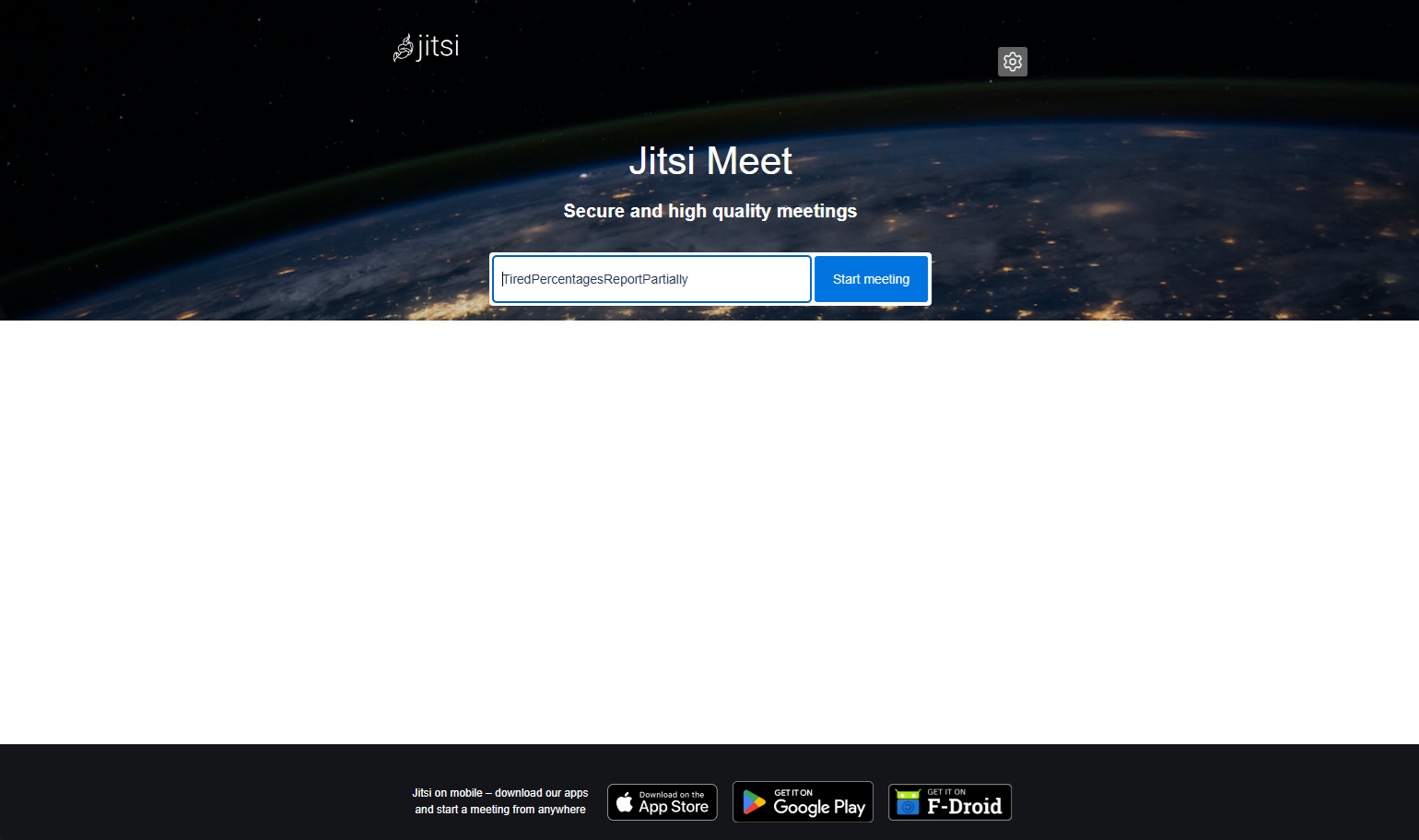
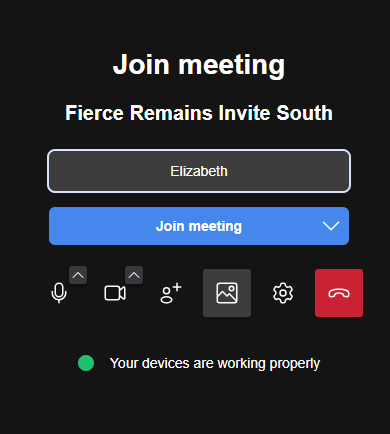
Each Jitsi meeting is identified by four words, which also make up the URL. These persist, so the same link can be used for regular meetings. The Join meeting screen shows these words, along with configuration tools and a device status message:
If you should arrive in a meeting before the moderator has started it, you will see the message below:
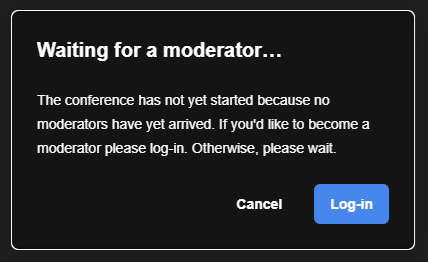
Simply wait, and you will be automatically joined to the meeting once it begins.
If you are the moderator starting the meeting, click Log-in, and enter your Hub credentials. Next you will be asked to choose which Circle the meeting is for, see example below:
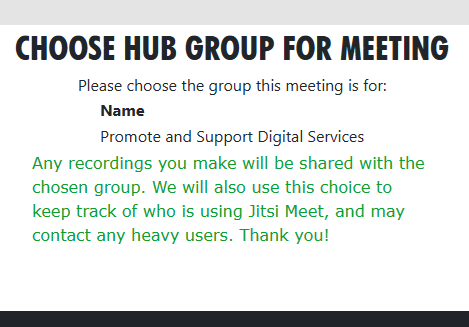
Note the message about recordings, then click on your choice of Circle (here only Promote and Support Digital Services is shown) and you will be returned to the Join meeting screen (but this time as a moderator). Click Join meeting again to start the meeting - if participants are waiting they will be added to the meeting too.
Note that a meeting can have more than one moderator; you can take on this role by opening Settings (on the More actions menu - three horizontal dots), choosing the Profile section, and logging in.
Typical controls in a meeting
Once in the meeting, the screen should look similar to the image below. Here the Chat window has been opened, showing the standard message that there is a 180 minute limit on all meetings (this is configurable, should it be necessary).
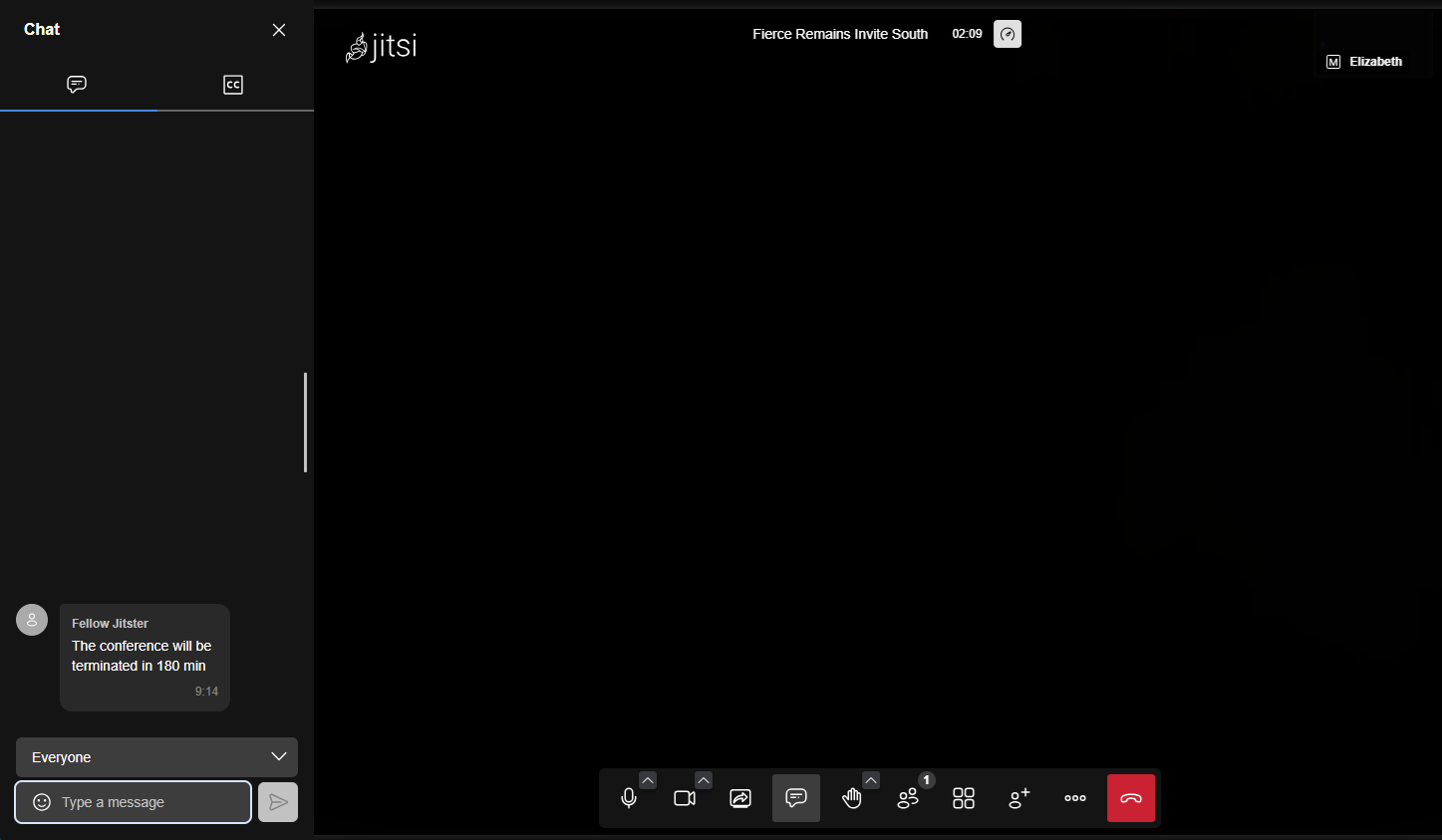
To turn on Closed Captions (subtitles), note the 'CC' symbol at the top right of the Chat window. Click on this to see the option to start subtitles, shown below.
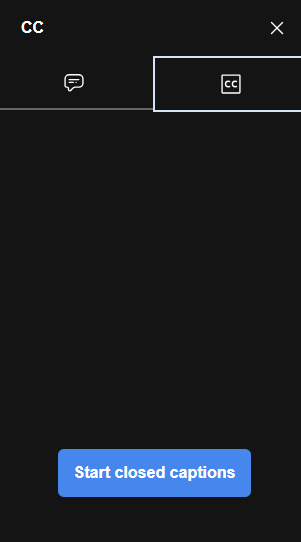
Click Start closed captions, but note that sometimes it may take a couple of minutes from the start of the meeting for the functionality to be ready. Usually you will see a message in the chat to this effect, and another message when subtitles are ready. Once you see the second message, a moderator will need to click the "Start closed captions" button, and then words spoken by any speaker from then on should appear as subtitles in the CC tab of the Chat window, as shown below.
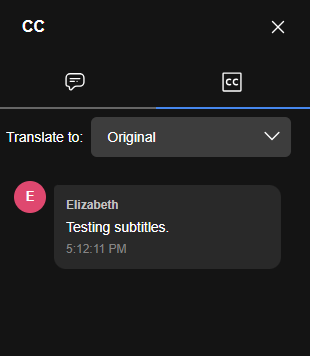
You can switch between the Chat tab (speech bubble icon) and the subtitle tab (CC icon) as required, during the meeting. You may notice the subtitle text correcting itself as people speak, this is expected functionality.
Control Functions
In the image above, from the left, you can see the following controls:
- Microphone - mute/unmute audio
- Camera - enable/disable video
- Share Screen - present your screen or window
- Chat - send messages to participants
- Raise Hand - notify the host you wish to speak
- Participants - view attendees
- Grid view - change the way participants are arranged on your screen
- Add participants - invite others to the meeting
- ⋯ More Actions - (see below)
- End meeting - leave or end the meeting
The image below gives you an idea of the options available on the More Actions (three horizontal dots) menu.
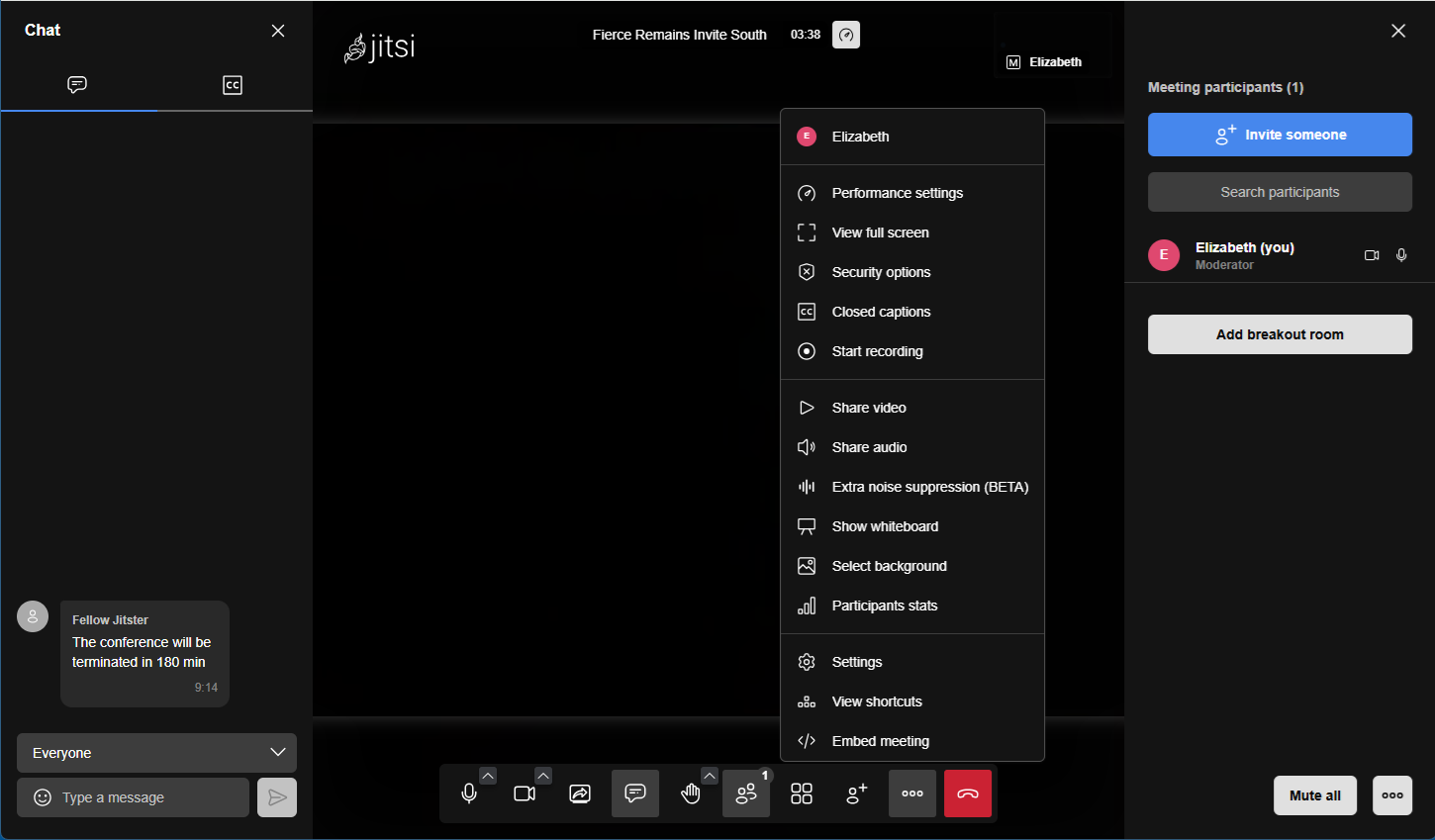
Jitsi automatically highlights the active speaker and shows participants in a grid or tile view.
Please use the mute button!
We strongly recommend that all participants mute themselves when not speaking - not doing this can cause problems with audio, and may take you out of the stack if you use the raise hand button.
Mobile phones
On a mobile phone you will need to rotate the screen (into landscape mode) to see the subtitles (or chat) at the same time as the people.
Also, if you don't need subtitles, consider using the app. You'll need to paste the whole meeting link (starting with https://meet.extinctionrebellion.uk/) into the app, not just the four words that make up the meeting ID.
The app allows you to screen share from mobile, and is a bit faster and therefore more stable. However, at the moment, subtitles don't work, so if you need subtitles you will need to use a browser as usual.
Inviting Participants
- Click Invite People or the information icon ().
- Copy the meeting link.
- Send the link through email, chat, or calendar invite.
Participants only need the link to join. The link to set up Breakout rooms is visible in the Participants view.
Chat During Meetings
Steps:
- Click the Chat icon.
- Type your message.
- Press Enter to send. Messages are visible to all participants in the meeting.
Screen Sharing
Both hosts and participants can share screens depending on instance settings.
Participant Management (Moderators)
Moderators can:
- Enable subtitles (see above)
- Mute participants
- Remove users
- Lock the room with a password
- Enable waiting room
- Start recording or streaming
These controls appear in the Participants panel or More Actions menu.
Basic Settings
Access via More Actions → Settings.
Available settings usually include:
- Display name
- Audio device selection
- Camera selection
- Language
- Background blur/virtual background
Ending the Meeting
To leave:
- Click the red hang-up button
- Close the browser tab
Moderators may optionally end the meeting for everyone:
Common problems
Sound
If your sound is not working (especially if nobody can hear you), there are several things you can try.
Please make sure that:
- The browser is allowed to use the microphone.
- The web page is allowed to use the microphone (usually in the address bar).
- You are using the right audio input (try each possible input, either with the up arrow next to the microphone icon, or using the Settings page).
- Audio is not muted at the system level (e.g. on Windows, look for a crossed-out microphone in Control Panel sound settings).
- If necessary, restart the browser and/or reboot :(
Also, as above, please mute yourself when not speaking.
If this does not make sense, or you still can't get it working, please contact us!
Other problems
There is a list of common problems with Jitsi Meet and how to fix some of them on the known issues page.
Otherwise please contact tech support! Please use this checklist if possible when reporting issues with Jitsi Meet, which explains what we will need to know to be able to help you, and also explains some common problems.
Jitsi Meet vs Big Blue Button
Advantages of Jitsi Meet over Big Blue Button:
- Subtitles work, even if somebody is on a mobile phone.
- Subtitles are more secure and easier to set up than on Big Blue Button (with BBB you should use local captions if possible).
- Screen sharing works on mobile if you use the app.
- Does not require emailing XR Global to get an account, you can use your Hub account.
- Calendar on the Hub (see below).
Disadvantages:
- You need a Hub account to start a meeting in Jitsi Meet.
- Big Blue Button has better background blur/background replacement.
- XRUK's Jitsi Meet is a work in progress, especially the documentation, but we consider it stable enough to use for regular meetings.
- 2 minute delay from the first person joining until subtitles start working.
- Recording works, but you'll need to contact us within two weeks to get the recording file, or use the record to local file option (lower quality). We are working on this.
- Polls are turned off due to issues with mobiles.
- Subtitles work on a browser on mobile but not on the app on mobile; this is being worked on.
- It seems to be less stable than BBB with slow connections.
- We have had some stability issues more generally (mostly people's video freezing, occasionally people getting kicked out), we are working on it but it is significantly improved already.
In general, Jitsi Meet provides both security and accessibility at the same time, unlike Big Blue Button (which is secure as long as you don't use subtitles, and isn't accessible if anyone is on a phone) or Zoom (which isn't secure for XR purposes). So we hope most circles will eventually move their regular meetings to it. But there are some minor drawbacks, so some circles may wish to continue using Big Blue Button. Either is preferable to Zoom!
Note that meet.extinctionrebellion.uk is hosted by XRUK. There is also a separate XR Global Jitsi Meet which does not have working subtitles, and even a public site (which does not have subtitles either). We suggest you use ours!
Security basics for Jitsi Meet
You need a Hub account to start a meeting in Jitsi Meet.
Once a meeting has started, anyone can join: they do not need a Hub account. However you can control who joins the meeting by enabling the lobby, as in Zoom. You can also login after joining the meeting from Profile under Settings (on the menu), which will make you a moderator. You need to be a moderator to enable the lobby, to mute other people or remove people, to enable closed captions, etc.
While you can technically pick any meeting name, please use a randomly generated name by e.g. clicking on meet.extinctionrebellion.uk, starting a meeting, and sharing the link. Otherwise if you use a guessable meeting name you will need to enable the lobby and/or put a password on the meeting, every time you start the meeting. Thanks!
Note that a meeting ID (room name or unique meeting link) belongs to an XRUK circle. Once a meeting ID has been assigned to a circle, only people in that circle can start the meeting. However once it has been started, anyone can join (unless you set a password or enable the lobby).
Scheduling on the Hub
You can see current and scheduled meetings that belong to your circle on the Hub, on the Meetings page for your circle. If you join the meeting through the Hub, rather than just clicking on the meeting link, you are automatically logged in and made a moderator.
Group Admins can create or schedule meetings (e.g. to recur weekly). The Hub can also provide reminders on your Mattermost channel if you use Mattermost.
In the near future, we will use this information to try to ensure that the subtitles backend is available by the time a scheduled meeting starts, so that subtitles work immediately if the first person to join needs them, rather than having to wait the usual 2 minutes for the backend to boot up. However if a meeting starts on the hour we will not start subtitles up until the start of that hour, for cost reasons.
Your data and how to help us
Digital's servers (and sysadmins) know who is using Jitsi Meet, both which Hub account created the meeting, which circle they said the meeting is for, who joined etc. We will keep this information private, and delete it regularly, but we may reach out to you if you use Jitsi Meet regularly, especially if your circle is a heavy user.
We do not routinely keep transcripts, and any recordings you make will be shared with your circle on the Cloud, either manually on request (within 2 weeks!), or in future, through an automatic process. We will update this section soon.
If you need tech support, or have any feedback on what works and what could be better, please contact Digital.