
Share your photos
There are two ways to contribute your photos: direct to the XR Media Library ‘Picture Desk’ or via XRUK Live Action Content Telegram channel.
🔹 Professionals and competent amateurs should upload directly to the XR Media Library - 'Picsio'.
🔹 Less confident amateurs should upload to the XRUK Live Action Content Telegram Channel instead, following the instructions on this page.
Live Action Content channel
This channel is for those who are unable to operate Pics.io and anyone who'd like to share photos of their actions with the rest of the movement.
- Join the Telegram Channel on desktop or your phone.
- Read the pinned posts for guidance on protocols.
- Select a maximum of 10 of your best photos (less is more).
💡 Best practice is to upload a batch of photos together with the date, name of action, your name (if you want credit), the name of the XR Local Group (or other groups involved) and a brief description.
👉 To do this make your selection (option click on desktop or individually from a phone library), then make sure ‘Group Items’ tick box is ticked and ‘Compressed’ is unticked (otherwise it will clutter the feed with a long string of low-res photos instead of a box set of hi-res ones).
⚠️ Please note that this channel is for breaking news and sharing photos of actions, not to promote future events or to have conversations.
Pics.io
Upload from a desktop
Please try to upload a few early action photos wherever possible, you can edit a fuller selection later and upload again. Select up to 30 of your best photos. If you are able, title your photo with date_name of action_your name (or pseudonym)_Image number.
-
To get started, go to pics.io
Log in user: xrphotolibraryuploads@protonmail.com
Password (type it don’t cut and paste): Rebelsnappers1! -
You will see on the left side a series of folders with year & month. As you roll your mouse over the folder names a series of buttons will appear:
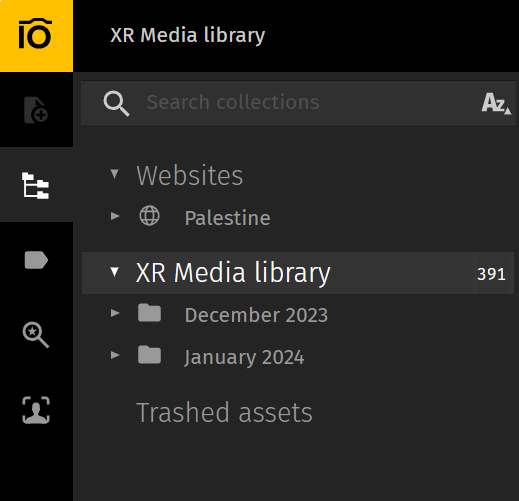
- Select the folder for the correct month by clicking on it:
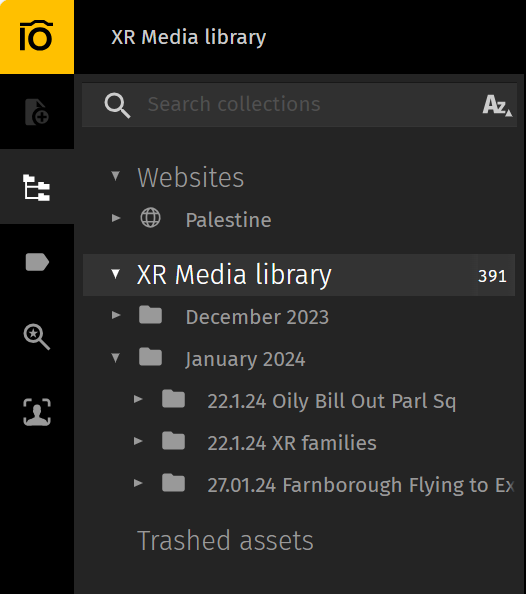
If your Region has its own folder, e.g. North, scroll down to there, then click on the appropriate year and month.
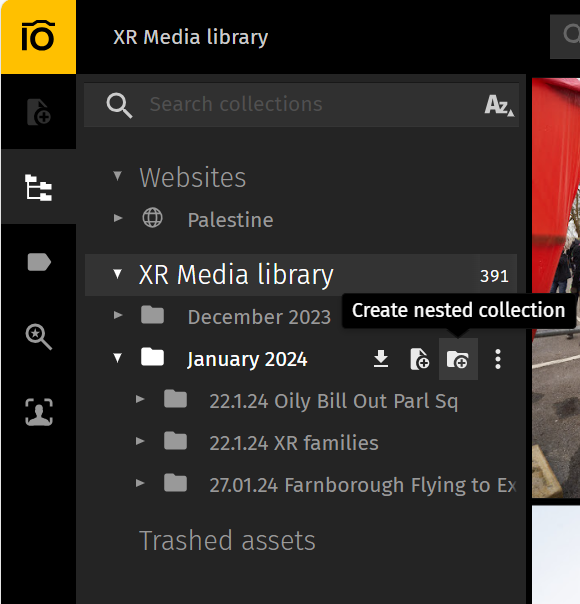
- If a master Action folder hasn’t already been created, make a new folder using the button menu that appears on the same line as the folder, new folder button is called "create new collection"). Title the new folder with the date and name of the Action:
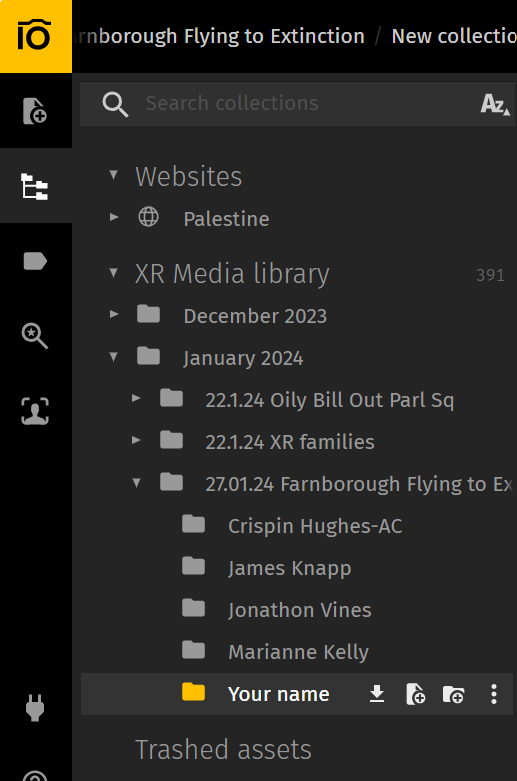
- Create a folder within the main Action folder with the photographer’s name, if known:
-
Click Add Asset, Upload Folder or Upload File and select your folder or photo (or use the Drag & Drop option); this will add your files to the upload queue.
-
On the right is a column titled ‘Add metadata for 1 asset’. This is where you can add details to help searches locate your photos more easily:
- Title
- Description
- Keywords
- Photo Credit (If you need the photo to be credited to the photographer, Click on ‘Choose Custom Fields’ then scroll down and select ‘Copyright Notice’ or ‘Credit’).
-
Press Import.
-
When the upload is complete, copy the URL of your folder from the main title bar.
-
Join the XR Media Library PICSIO WhatsApp Group.
-
Post the URL link in the group chat with date, name of action, your name or pseudonym, brief description and if possible a thumbnail photo. For local or regional actions, it’s really important to add a hundred words or so of description so other people who may help distribute the story know what the action was all about.
This Picsio WhatsApp group is for the media upload URL links and tech support questions for the Picture Desk crew only, not chat. (It’s an open channel for anyone with the group link so keep it technical).
We have a team of photo editors, collectively called the ‘Picture Desk’ who curate collections of the best photos into Press Selection albums for distribution. By posting in the WhatsApp group they are alerted to your upload. If you don’t post in the chat, your photos may be overlooked.
Upload from a phone (iPhone or Android)
The upload procedure using the App is the same as above for desktops except you can’t copy the URL of your new folder.
Please also join the Picsio WhatsApp Group and create a post with the date, name of action, your name or pseudonym, brief description and if possible a thumbnail photo.
- Download the relevant App from App store or Google play (search for pics.io)
- Select up to 25 of your best photos (less is more)
- Log in user: xrukmediacontributor@protonmail.com
- Password (type it don’t cut and paste): Rebelsnappers1!
Download the app and set up your log in BEFORE shooting an action, don’t leave it until you’re in the middle of it.
Global Media Library
The XR Global Media Library is at https://show.pics.io/xr-global-media-resources.
It has sections on:
- audio
- graphic design & artwork
- guides
- photography
- video
Documentation for the Global Media Library is available in the library itself, under "Guides".
There is another Media Library for Breaking News at https://show.pics.io/xr-global-media-breaking-news. This is where photos from the UK are usually posted.