
Managing New Volunteers
Introduction
It can quickly become confusing when you have a number of applications for your role ads. Storing their contacts details securely and within GDPR regulations can be a challenge.
To help, we have a system on Mattermost using the built-in 'kanban-style' boards. Kanban boards are a way of seeing information linearly and laterally to minimise overwhelm.
Quick Start
- Acknowledge the application
- To track progress, use a Mattermost Board or something else like a spreadsheet. The important thing is to keep your records up-to-date to avoid losing track.
- If using a Mattermost Board, record recruitment progress by completing and updating a card. See Steps below.
Steps for using a Mattermost Board for tracking applications
1. Use the Recruitment Support: Applications Mattermost board to manage your new applications and keep a record of progress.
If you decide not to use Mattermost, you can use a spreadsheet. However, this means Recruitment Support won't be able to support you in the same way as we won't have access to your spreadsheet.
2. Have all the info at hand. If using Reach Volunteering, have the applicant's CV open. Or if using the Volunteer Website have the volunteer's application open.
3. Create a card on the Applications board using New [top right blue option]. You name will be added into the Created by field and the date you created the card, automatically.
Handy Hint
Every time a card is created, use consistent terminology for the team applied to, role names and on which platform the application was received. This will make it easier to search for information on the board and also create uniform statistics. E.g use VW for Volunteer Website and RV for Reach Volunteering.
4. Copy the applicant's name and paste into Untitled then click into Empty next to Status and choose Application Received.
Handy Hint
Record any progress, e.g. email, phone or text conversations, meetings arranged, outcomes of meetings, onboarding progress etc. into the Comments section on the card. It is easy to forgot what you said to whom and when!
5. Add the Integrator's handle. The Integrator is responsible for contacting the applicant and maintaining progress and updating the card. They can also be the rebel who onboards the new volunteer into the team.
Handy Hint
Don't add more than 1 integrator or you risk neither integrator keeping in touch. They may then find an Integrator for a hand-over and only then change the Integrator's name. Otherwise there is no clear responsibility and applicants get forgotten.
6. Download the applicant's CV and upload to the Applicants CVs Cloud folder. To request access to this folder, use the Recruitment Support contact details above. Once uploaded to the Cloud folder, create a Public view-only share link, and paste the link into the CV property on the card.
7. Delete the CV from your own device. Don't store people's personal details on your own devices!
8. If using the Volunteer Website, copy and paste the applicant's profile and message text or, if using Reach, copy the applicant's message and paste into the Comments section on the card.
9. Fill in as many details on the card as you can and then add to the remaining details when you can. These details include:
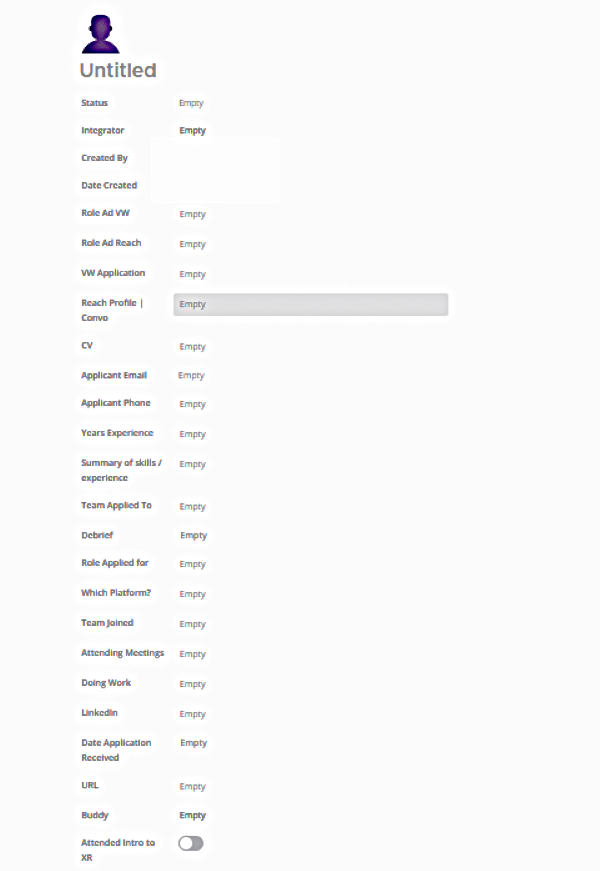
Handy Hint
To help find information on the board and creating statistics, it's key to fill in as many of the properties as possible!
10. Contact the new applicant either by email, text or call. Then fill in the Contact history on the Volunteer Website or if on Reach, reply to the applicant's message to let Reach know you've acknowledged the application.
Handy Hints
- Once you have messaged the new applicant, change the status on the card from Application Received to In Progress. Then remember to update the status as you progress the application, e.g. In Role, In Another Role, Withdrawn.
- To find a specific applicant use the search box with the magnifiying glass top right.
- Buddy - this is someone in your team the new volunteer can maintain contact with for further support.
- Attended Intro to XR - it's good advice for all volunteers new to XR to register for this talk as this will save you time. The talk covers the P&Vs, Three Demands, how we organise and many other topics, you might have to explain otherwise. It also gives the new applicant the opportunity to decide if XR is for them.
Why use a Mattermost board to track your applicants
Mattermost boards can be tailored to any repetitive task - like managing new volunteers! Read the basic info on How to use Mattermost Boards. Once you've read the basic information on How to use Mattermost Boards and watched the video [link coming], let us know you're ready and we will then add you to the board.
To request access to the Recruitment Support: Applications board, contact Recruitment Support either via our Mattermost Reception or email volunteer+rs@extinctionrebellion.uk.
Benefits of using the board
By completing the steps above, you keep track of progress and if you need support, others who use the board can see this progress. If the applicant isn't suitable for your team and you want to pass them to another team, they can easily pick up where you left off.
Further support
Recruitment Support have a process to help you. Once familiar with the process, it's easy to use and keeps all the information in one place, which means we can support each other with recruitment and onboarding. Recruitment Support can offer guidance and give ongoing support until you feel happy using this process. It involves using Mattermost and if you're not yet a Mattermost user, we can also support you with how to use it.
We are here to help, please use us! If you need further support with Mattermost Boards, contact the Recruitment Support team either via our Mattermost Reception or email volunteer+rs@extinctionrebellion.uk.