
Mattermost Boards
Introduction
Mattermost Boards is a project management and task-tracking tool integrated directly into the Mattermost platform. Boards allows teams to organise tasks, define workflows, and collaborate on projects within a single, secure environment.
Mattermost Boards can do a lot! If you'd like to do a deeper dive and find out more, e.g. how to create a board, create a card template, filter, add properties to a card and much more, please check out the Mattermost support info.
Basic steps for working with an existing board
1. Sharing and accessing Mattermost Boards
- Create a shared link, or invite team members directly.
- Board admins can select Share in the top-right corner to manage access and then add the rebel's handle.
- Or, boards can also be linked directly to channels to automatically provide access to all channel members.


2. Steps to create a new card from an existing template
- Open the board where you want to add the card.
- Click the word NEW [top right in blue] or the + sign at the top of a column.
- The new card will be created with pre-populated fields (properties, description) based on that template.


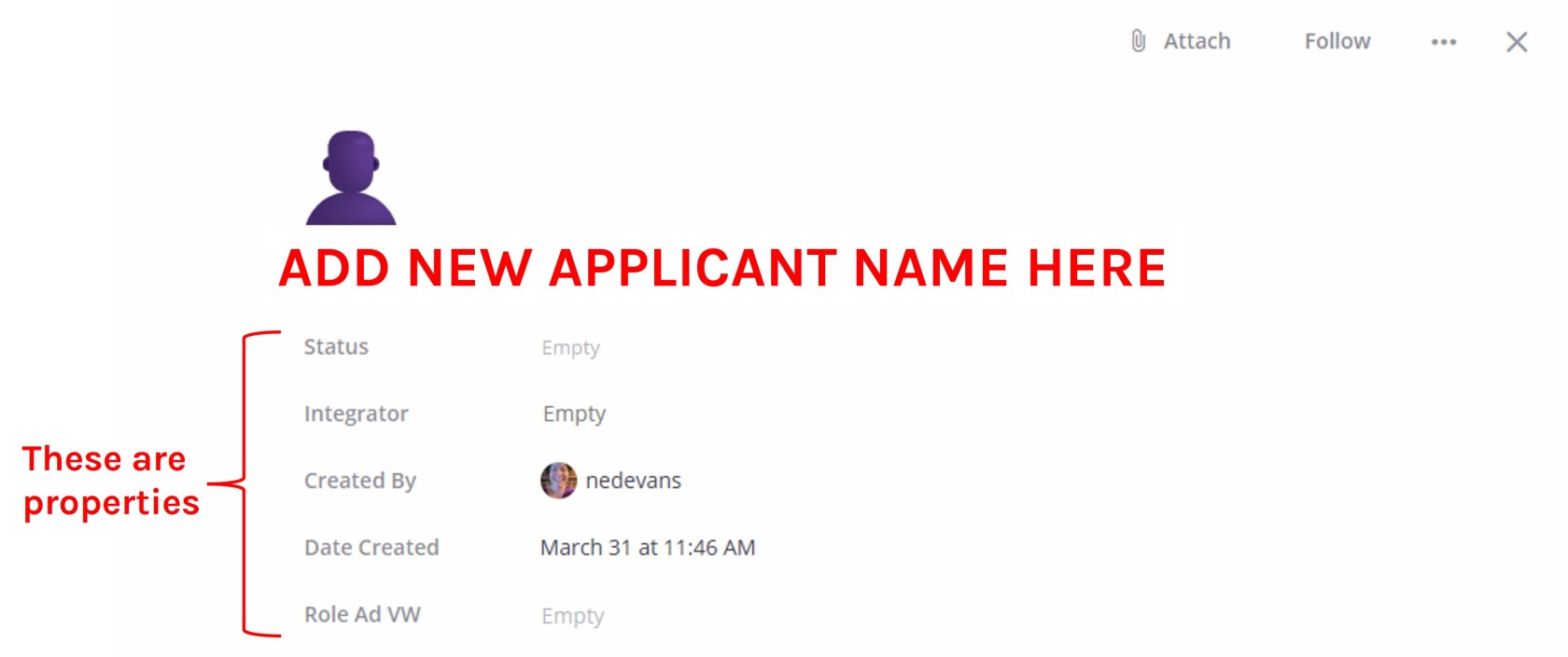
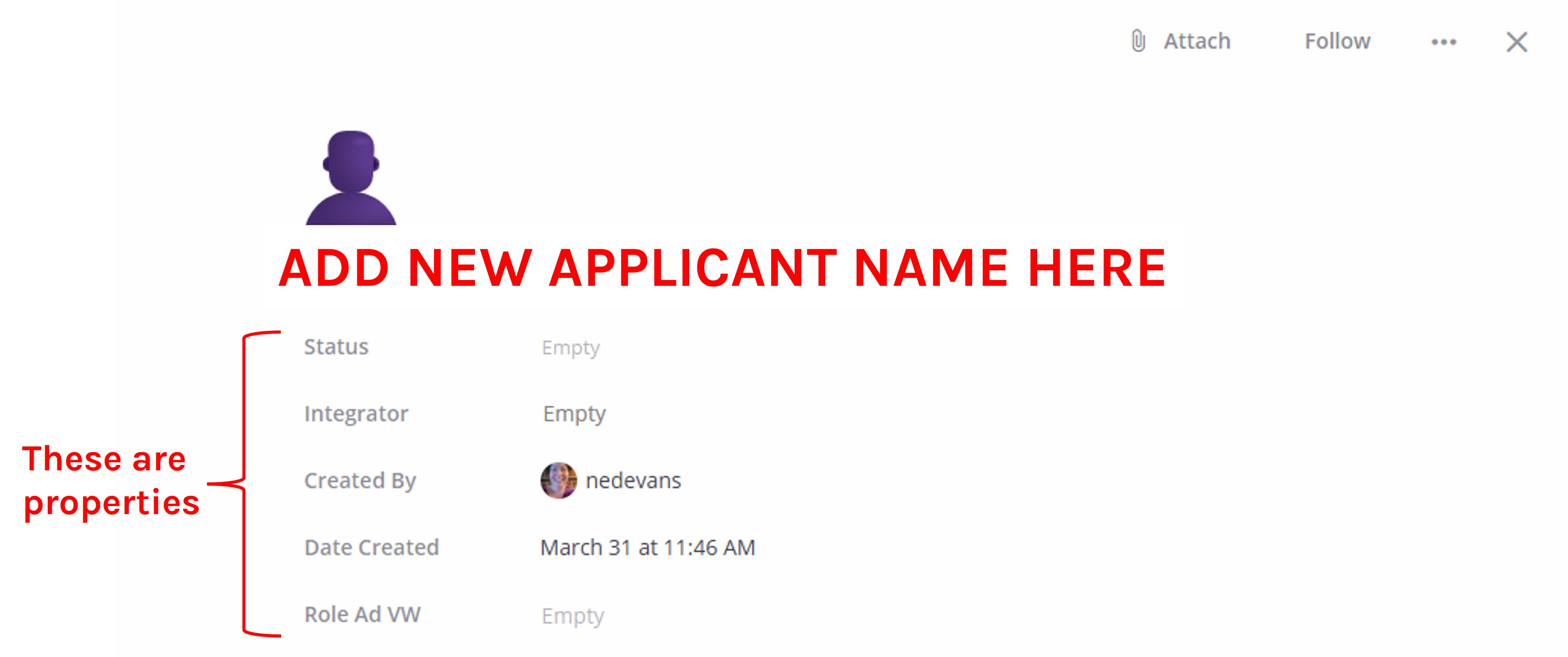
3. How to fill 'properties' on a card
Properties are common to all cards on a board.
- Open the card and click on a property field to input or select info (e.g. text, numbers, dates, people, links).
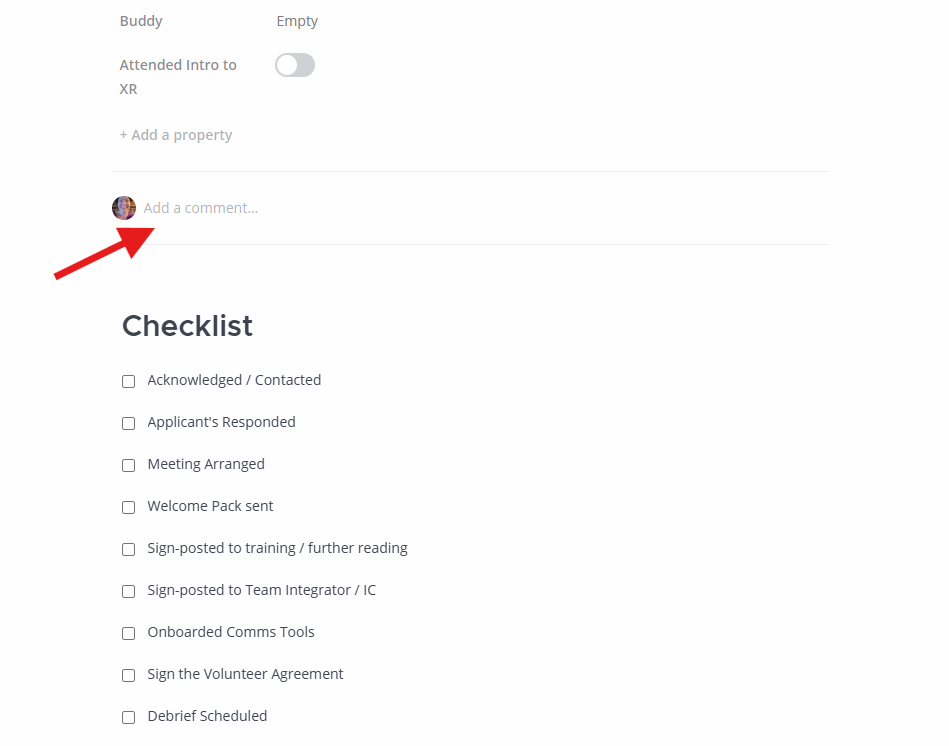
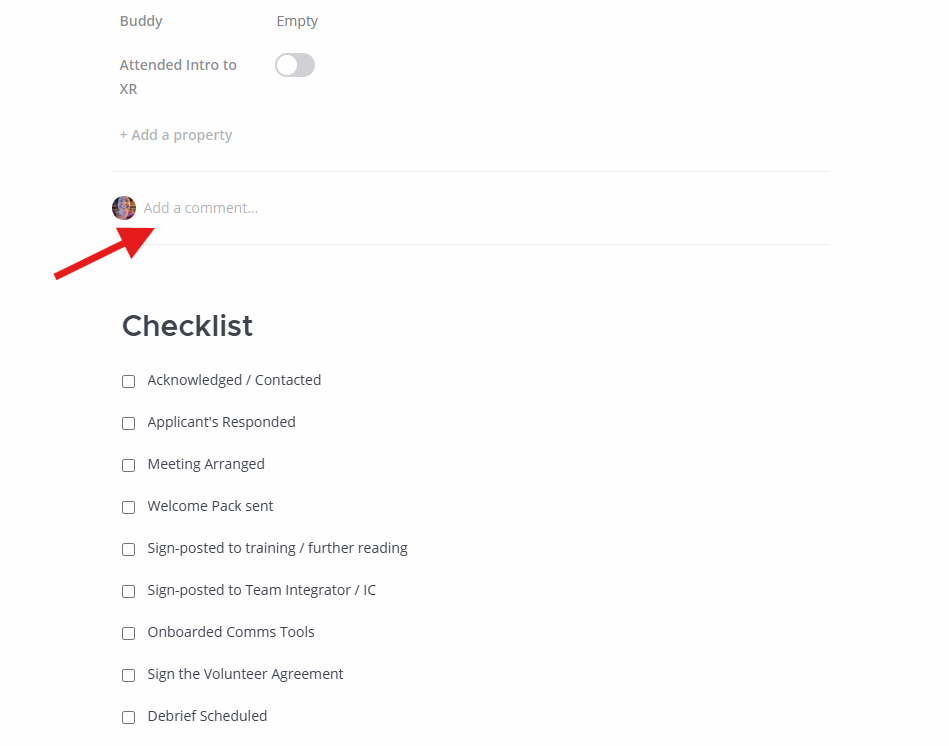
- Comments are useful for keeping a note of updates on progress.
- Checklists are handy for quickly seeing what tasks have been completed.
- You can move a card from one column to another by updating the 'Status' property or manually dragging cards from one column to another.
4. How to search for a card
- Use the Search Bar: in the top-right corner of the board view, click the Search cards field (magnifying glass icon).
- Type Keyword: start typing the card title, description, or content you are looking for. The board will filter cards in real-time to match your text.
5. How to add links to a card
- Open the card and add or use an existing URL property to paste in links directly.
- Or insert links into the card's description or comments section.
- Mattermost uses Markdown as a text editor.
- You can create a short link by using square and round brackets.
- Open a square bracket [type the name of the link and then close the bracket].
- Open the round bracket (and paste the link, then close the round bracket) Don't use any spaces inside or between brackets. If the name of your link is more than one word, you can use spaces to separate the words inside the square brackets.